Choosing Your AI Mode
A practical decision guide to help you choose the right JIVIQ AI mode—Autopilot, Copilot, or Off—tailored to your team size, support volume, and workflow.
Every business has a distinct philosophy when it comes to customer communication. Some want autonomous, instant 24/7 AI coverage to capture every website lead immediately. Others prefer high-speed AI draft assistance with 100% human oversight, while some teams choose direct manual messaging. Learn more about JIVIQ and discover how our platform fits your customer operations.
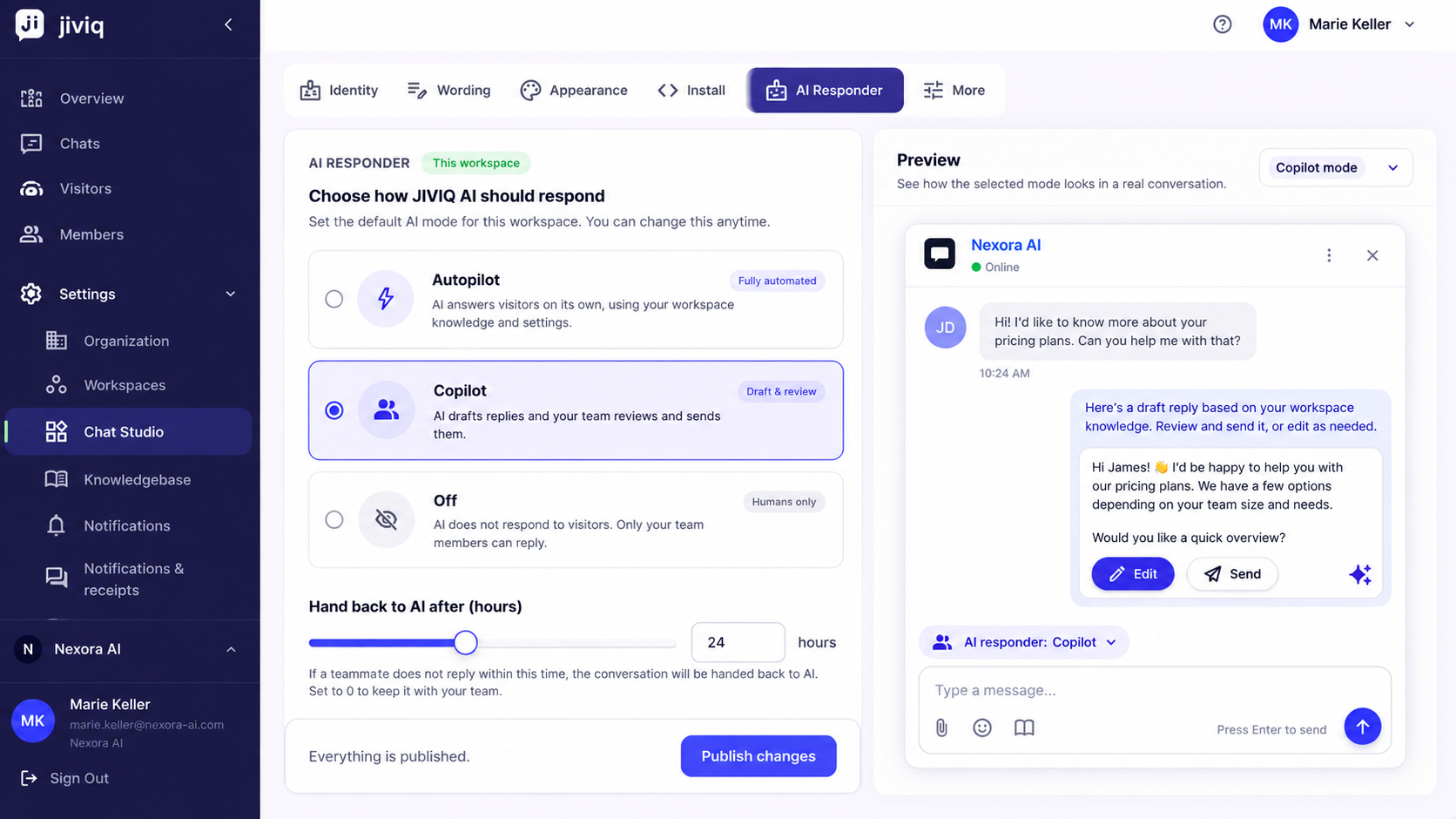
The Three JIVIQ AI Modes
JIVIQ features exactly three official operational modes designed to balance AI speed with human craftsmanship:
AI Answers Visitors
The AI assistant responds autonomously 24/7 using your verified Knowledge Base facts.
AI Drafts, Team Sends
The AI prepares smart response drafts inside the composer for human review, editing, and approval.
Humans Only
AI automated replies and background drafts are turned off. Teammates craft all responses manually.
Choose Autopilot If...
Autopilot is the best choice when your business prioritizes immediate 24/7 responsiveness and has solid knowledge documentation. Select Autopilot if:
Your customers visit at all hours across international time zones, and you want questions answered in seconds without staffing an overnight shift.
You have imported your website content or uploaded help docs, allowing the AI to answer common questions with high accuracy.
Inquiries about pricing, shipping, booking links, or product specs consume valuable team time that could be spent on high-touch sales.
If the AI encounters an unverified question or a visitor explicitly asks for a person, JIVIQ automatically routes the conversation to your human team inbox.
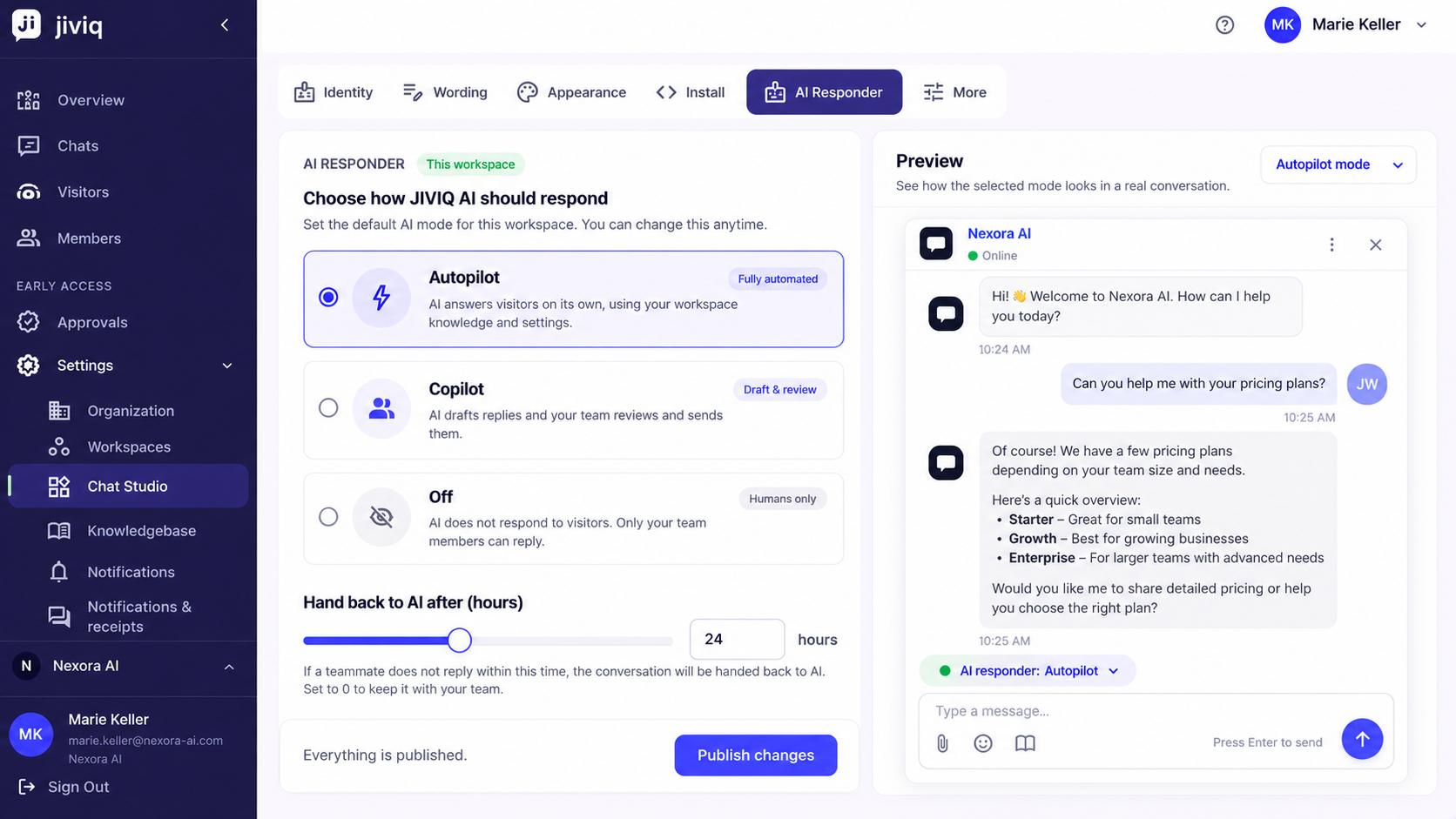
Choose Copilot If...
Copilot is the ideal choice when your team wants the productivity boost of AI generation while maintaining human review on every customer interaction. Select Copilot if:
Your brand guidelines, compliance rules, or high-value enterprise sales require human oversight before any message is sent.
Teammates can review an AI draft in seconds, tweak details, and hit send rather than typing full technical explanations from scratch.
While building your Knowledge Base, reviewing AI drafts allows your team to verify accuracy and add missing documentation proactively.
New JIVIQ workspaces default to Copilot so you can evaluate AI response quality with zero risk to customer trust.
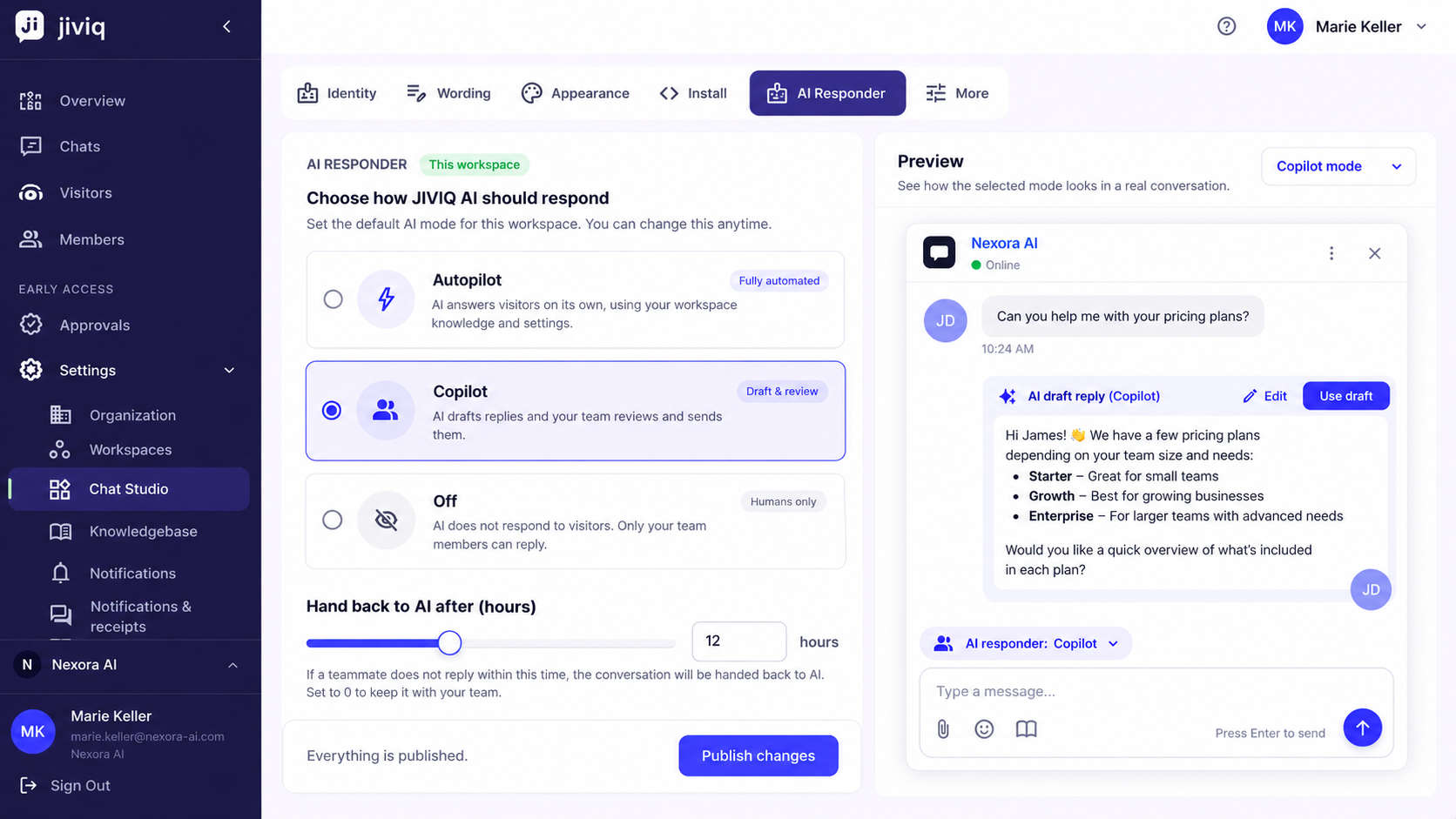
Choose Off If...
Off mode completely disables AI answering and draft generation, leaving all visitor conversations in the hands of your human team. Select Off if:
Your support model relies entirely on bespoke, personal conversation directly composed by human agents.
If you are restructuring your knowledge base, you may temporarily set the AI responder to Off to prevent outdated drafts.
You want JIVIQ's unified customer timeline, visitor metadata, and conversation history without AI generation tools.
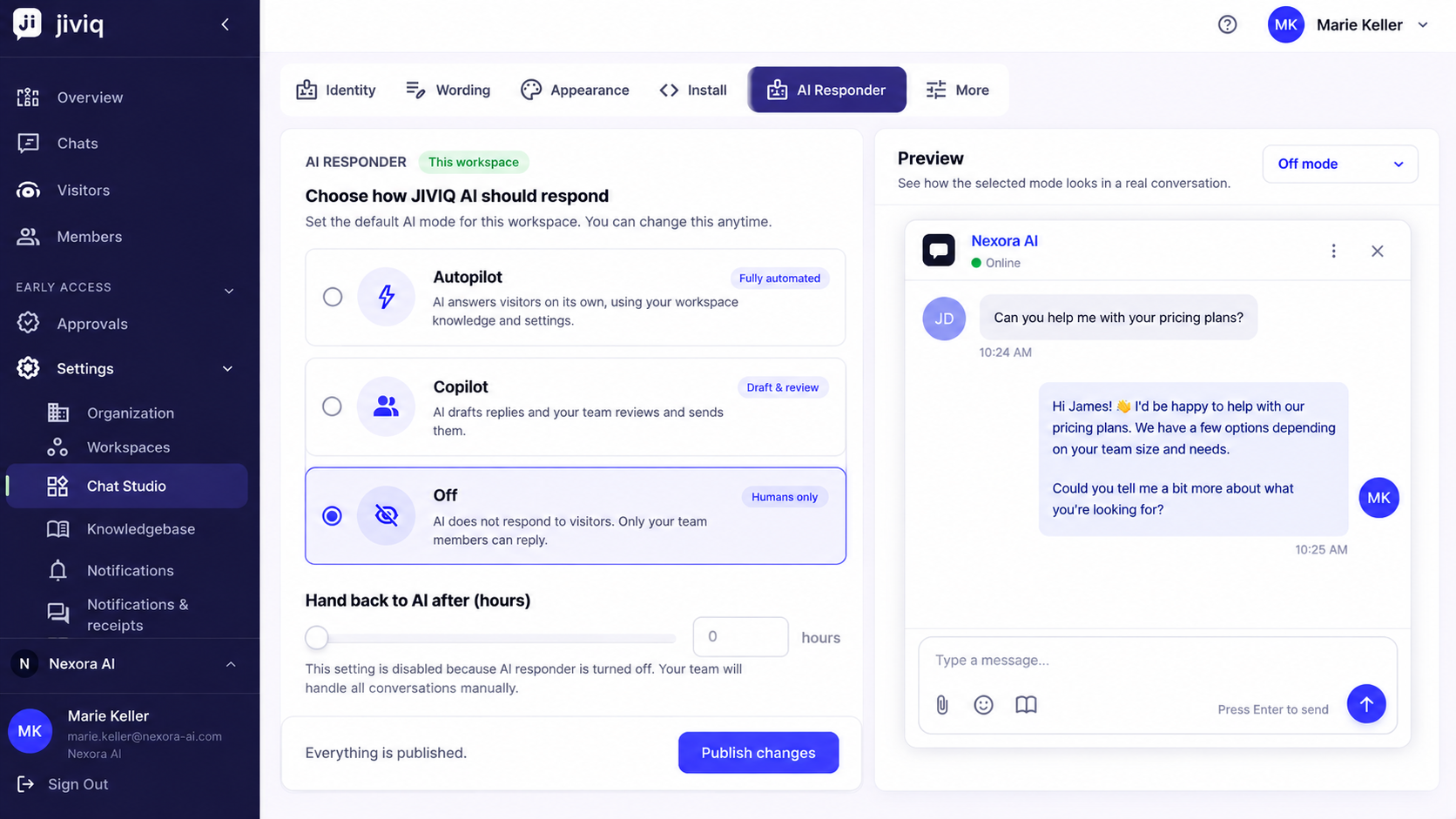
Quick Comparison
Compare the three modes side-by-side to determine which operational style matches your current setup:
| Mode | Who replies? | Best for |
|---|---|---|
| bolt Autopilot | AI answers visitors directly 24/7 | Businesses that want AI to handle customer conversations directly and automatically |
| psychology Copilot | AI drafts, team sends | Teams that want AI speed and drafting assistance with full human approval |
| power_settings_new Off | Humans only | Teams that want to handle every customer conversation themselves manually |
How to Change Your AI Mode
Changing your workspace default AI mode takes just a few clicks from the JIVIQ admin dashboard:
Navigate to Workspaces Settings
In the JIVIQ left sidebar, click Settings (cog icon) and select Workspaces.
Select Your Target Workspace
Choose the workspace you want to configure from your workspace list.
Choose Autopilot, Copilot, or Off
Under AI Responder, click your preferred mode. Changes save and take effect immediately in real time.
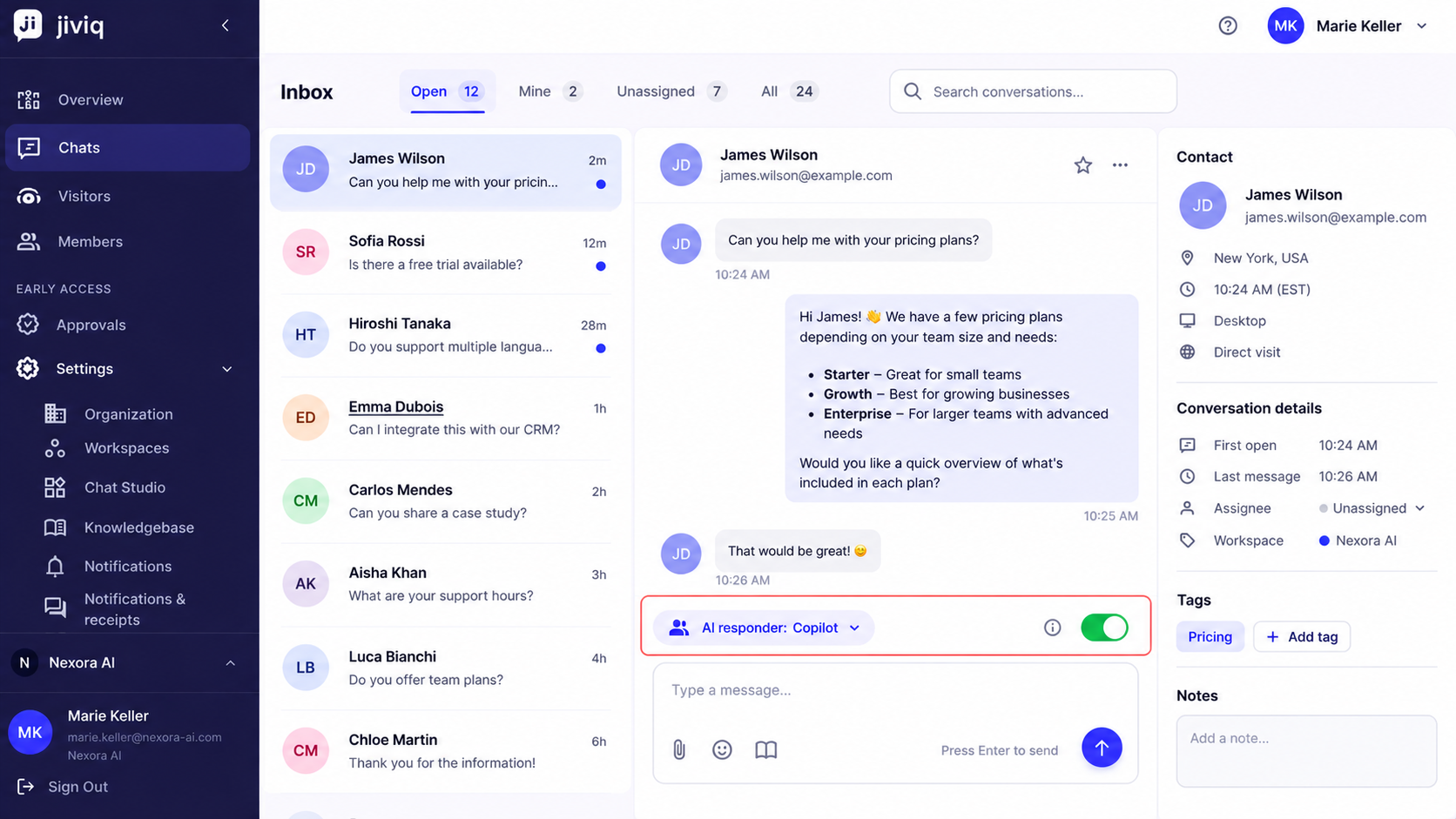
Changing AI for One Conversation
Your workspace setting serves as the default behavior, but your team can override the AI mode for any specific customer conversation.
Recommended Starting Point
For teams just getting started with JIVIQ, we recommend the following phased progression:
Start in Copilot (Default)
New workspaces start in Copilot. Use Copilot for your first week to observe how AI drafts responses based on your knowledge base.
Refine Knowledge Documents
If you notice the AI missing answers during Copilot review, import website URLs or add documentation in your Knowledge Base.
Promote to Autopilot
Once you are confident in your Knowledge Base accuracy, switch your workspace to Autopilot for 24/7 autonomous responses.
Frequently Asked Questions
Find answers to common questions regarding AI mode selection, plan access, and conversation controls:
New JIVIQ workspaces start in Copilot by default. This mode allows the AI to draft responses while your human team reviews, edits, and approves every message before sending.
Yes. Account owners and admins can switch between Autopilot, Copilot, and Off at any time under Settings → Workspaces with changes taking effect instantly.
Yes. Each workspace operates with its own independent AI responder setting. For example, your Sales workspace can run on Autopilot while your Support workspace runs on Copilot.
Autopilot is best when you have a well-populated Knowledge Base and want JIVIQ AI to autonomously answer customer inquiries 24/7 without manual staff intervention.
Autopilot strictly grounds its answers in verified Knowledge Base content and performs automated pre-send validation checks before delivering responses.
Autopilot requires the Auto-Pilot plan. During the 14-day free trial, you have full access to Auto-Pilot plan features.
Copilot is ideal for teams wanting high-speed AI assistance while retaining human oversight, editorial polish, and relationship building on every sent response.
No. Copilot drafts are visible only to internal team members in the inbox composer. The visitor simply receives a polished message sent by your agent.
Copilot is included in both the Co-Pilot and Auto-Pilot plans, as well as during the 14-day free trial.
Choose Off mode when you want human-only support where team members type and send all messages manually without AI drafts or automated replies.
No. Customer records, conversation histories, contact metadata, and inbox tools remain completely accessible when AI mode is Off.
Off mode is always available across all plans and accounts with no special tier requirements.
Only team members with Owner or Admin roles can update the workspace-level AI responder setting under Settings → Workspaces.
Yes. Any teammate with write access can change the AI status pill inside an open conversation (e.g., toggling to 'AI · Off' or 'AI · Drafts only').
No. Changes apply seamlessly to subsequent incoming messages without resetting chat sessions or requiring visitors to refresh the webpage.