How to Import Your Website into JIVIQ
A comprehensive beginner's guide to importing website content into your JIVIQ Knowledge Base. Learn the official workflow for Sitemap, llms.txt, and Single page imports so your AI assistant can answer visitor questions using your live website facts.
What Is Knowledge Base?
Grounding principles & core concepts
Review →Create Knowledge Base
Add knowledge source in Settings
Review →Import Website
Sitemap, llms.txt & single page
Currently ReadingUpload Documents
Index PDFs, Word docs & text files
Up Next →Refresh Content
Schedules & manual sync
Explore →Connecting from Setting Up Your Knowledge Source
Now that you have created your Knowledge Source (covered in Guide 2), your next step is filling it with your real company information. Importing your live website is the fastest way to give your AI assistant immediate knowledge of your products, pricing, and services.
1. Why Import Website Content to JIVIQ?
Your website is often the most current, comprehensive record of what your business offers. It contains your public pricing tables, service descriptions, team bios, customer FAQs, and return policies.
When you import website content into JIVIQ, the system reads your public pages, cleans away extraneous layout code, and indexes the facts into your Knowledge Base. This ensures that when a website visitor opens the chat widget, your AI can immediately respond with accurate, grounded facts directly sourced from your site.
2. The Three Official Website Import Options
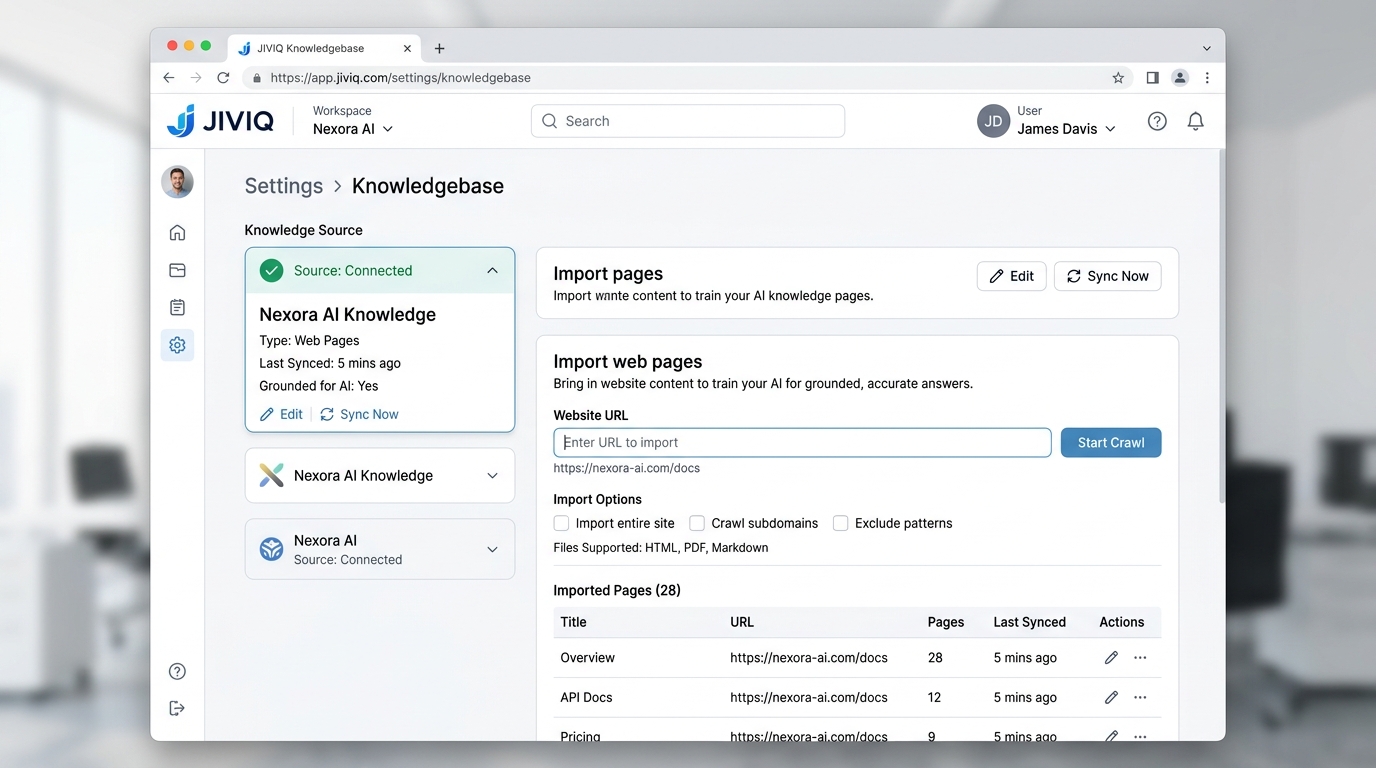
Under Settings → Knowledgebase, inside your Knowledge Source view, JIVIQ provides the Import pages card. You have three official options:
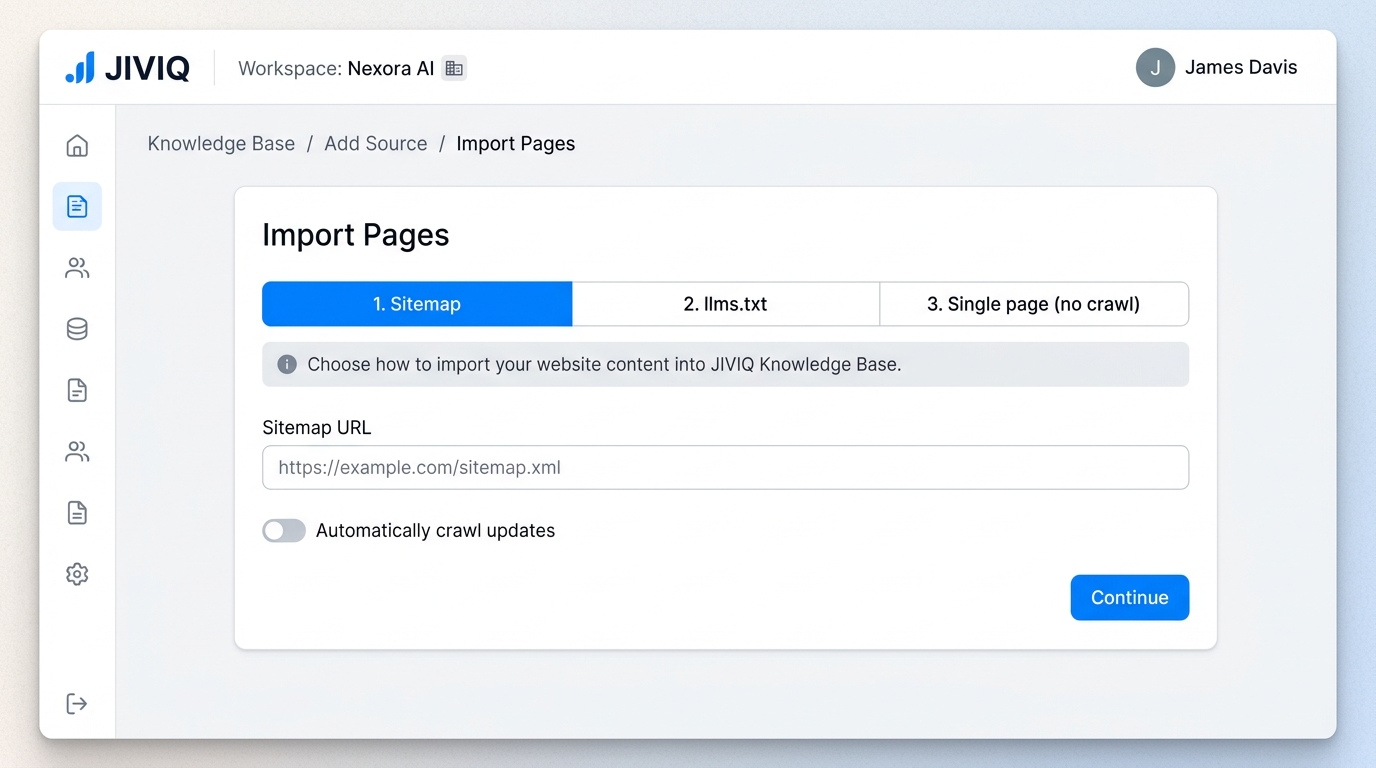
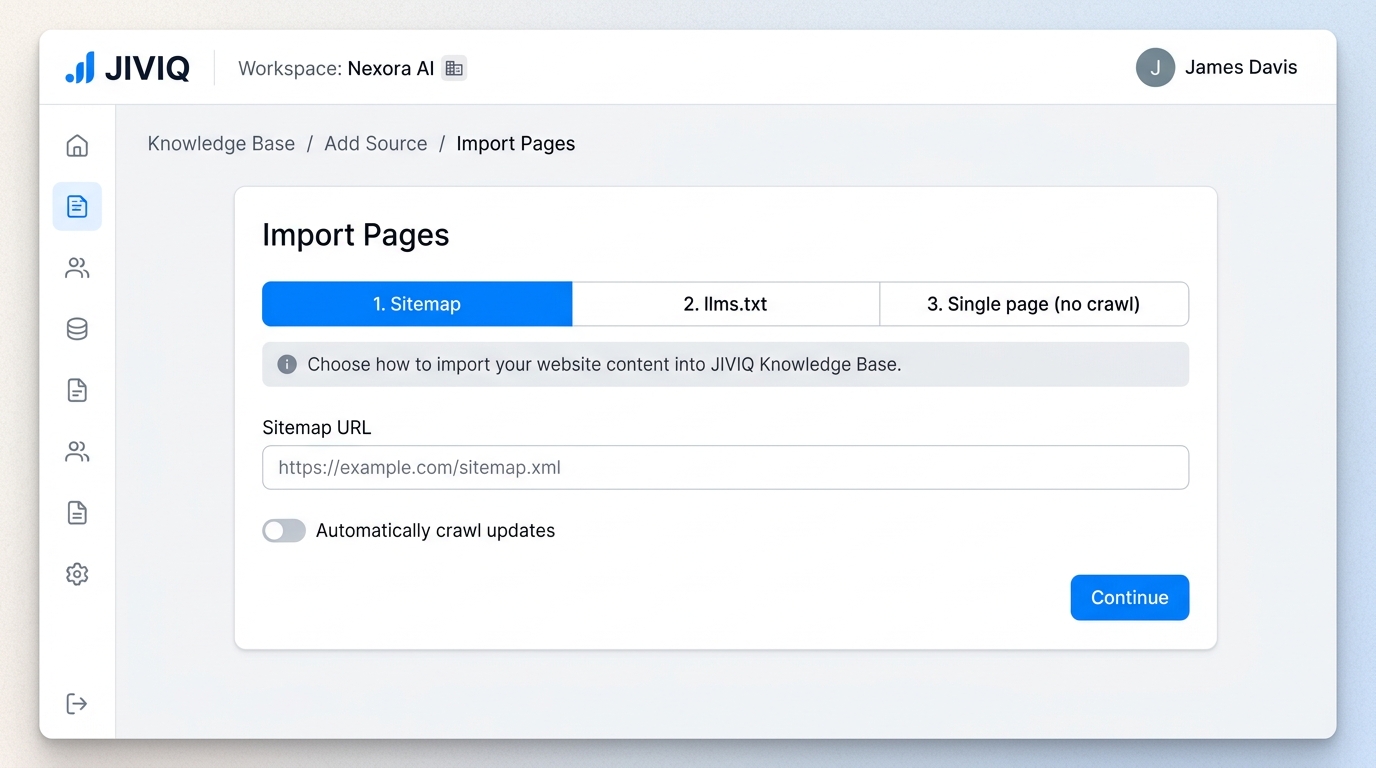
Sitemap
Automatically imports the entire public catalog of pages listed in your XML sitemap (up to 1,000 pages).
Best for Whole Websitesllms.txt
Imports curated documentation and policy pages listed in an AI-standard llms.txt content index file.
Single Page (no crawl)
Imports one exact public URL (e.g. /pricing) without spidering or following any outward links.
3. Importing via Sitemap & Include Patterns
A sitemap is an XML document published by your website that lists all public pages intended for search engines and indexing tools. When you provide your sitemap URL, JIVIQ automatically parses the list and imports the pages.
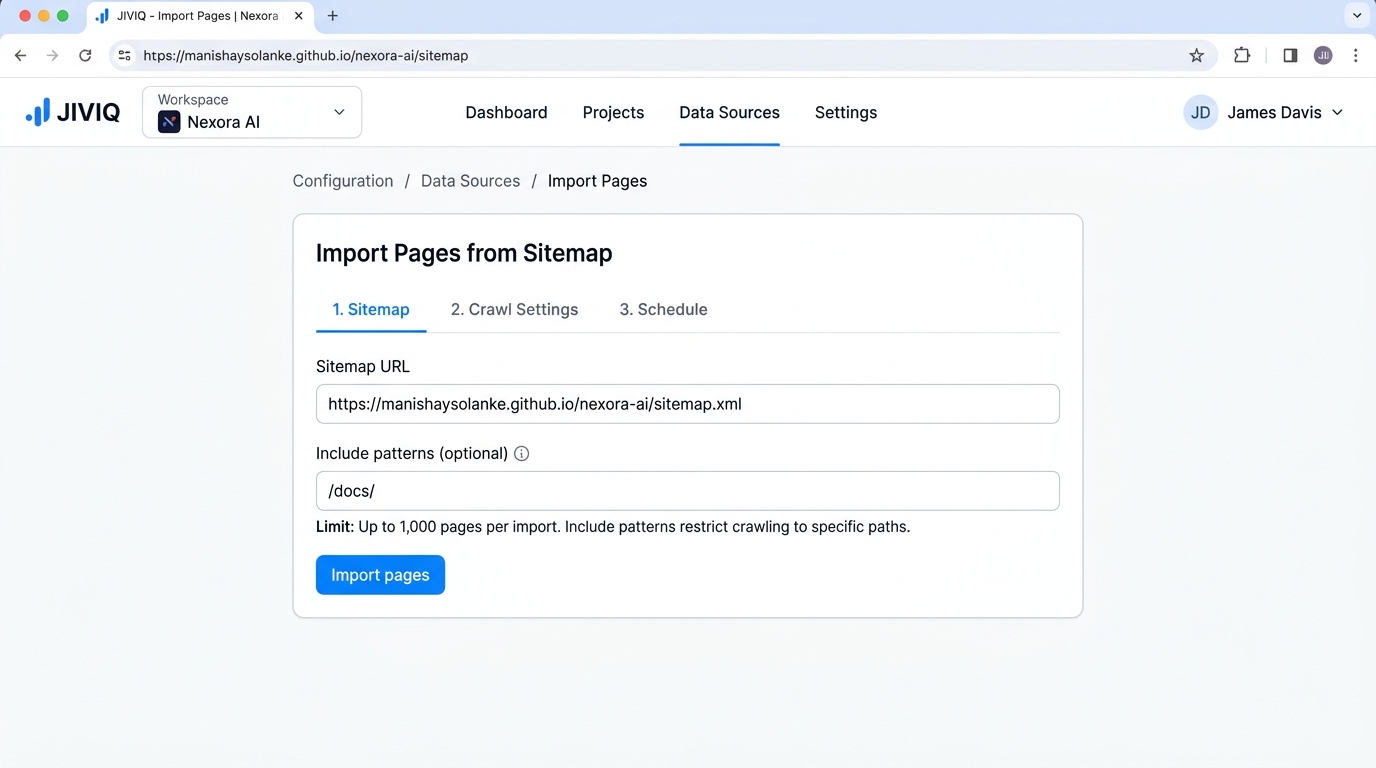
/docs/ include pattern to target documentation pages. A single sitemap import job can import up to 1,000 individual pages. This protects your account from indexing infinite pagination loops or search archives.
You can specify an optional Include pattern (such as /help/ or /docs/) to instruct JIVIQ to only import pages matching that subfolder. This avoids scraping irrelevant blog archives or author pages.
4. Importing via llms.txt
llms.txt is an open web standard that allows websites to publish a concise markdown-formatted table of contents specifically optimized for Large Language Models.
If your website or documentation tool (such as Mintlify, Docusaurus, or GitBook) automatically generates an llms.txt file at your domain root, you can paste its URL into JIVIQ. JIVIQ will read the file and import the referenced canonical markdown pages, delivering exceptionally clean knowledge with zero HTML noise.
5. Single Page (No Crawl)
The Single page (no crawl) option allows you to import one exact URL (e.g. https://example.com/pricing).
Critical Note: Single Page Does NOT Crawl Your Entire Site
Entering your homepage URL (e.g. https://example.com/) into the Single page input will only import the homepage itself. It will not crawl any other links, sub-pages, or nested menus. If you want to import your whole website, use the Sitemap option.
6. Checklist Before Importing
To ensure a smooth import with zero errors, review these 4 rules before submitting your URL:
Must Be Publicly Accessible
The page must load without requiring a password, VPN, basic authentication prompt, or local intranet access.
No Login Portals
JIVIQ cannot bypass login gates. Do not submit URLs behind a customer dashboard or staging password.
Use Fully-Qualified Public URLs
Always include https:// in your URL. Verify the link opens cleanly in an incognito window.
Verify Website Facts
Ensure your website's pricing, cancellation terms, and hours are accurate before teaching them to your AI assistant.
7. Step-by-Step: The Website Import Process
Follow these 8 steps to import your website content:
Open Knowledgebase
Sign in to app.jiviq.com and click Settings → Knowledgebase in the left sidebar.
Open Your Knowledge Source
Click on your existing Knowledge Source card or click Open Knowledge Source.
Open "Import pages"
Locate the Import pages card on the right-hand panel of your source overview.
Choose Your Import Type
Select between Sitemap, llms.txt, or Single page (no crawl).
Enter the Source URL
Paste your sitemap URL or specific webpage URL into the text input.
Click "Import pages"
Click the blue confirmation button to initiate the ingestion process.
Watch the Import Progress
Observe the live URL queue as JIVIQ discovers and reads each webpage.
Wait Until Pages Become "Ready"
Once pages display the green Ready status badge, they are fully indexed and immediately available in AI answers!
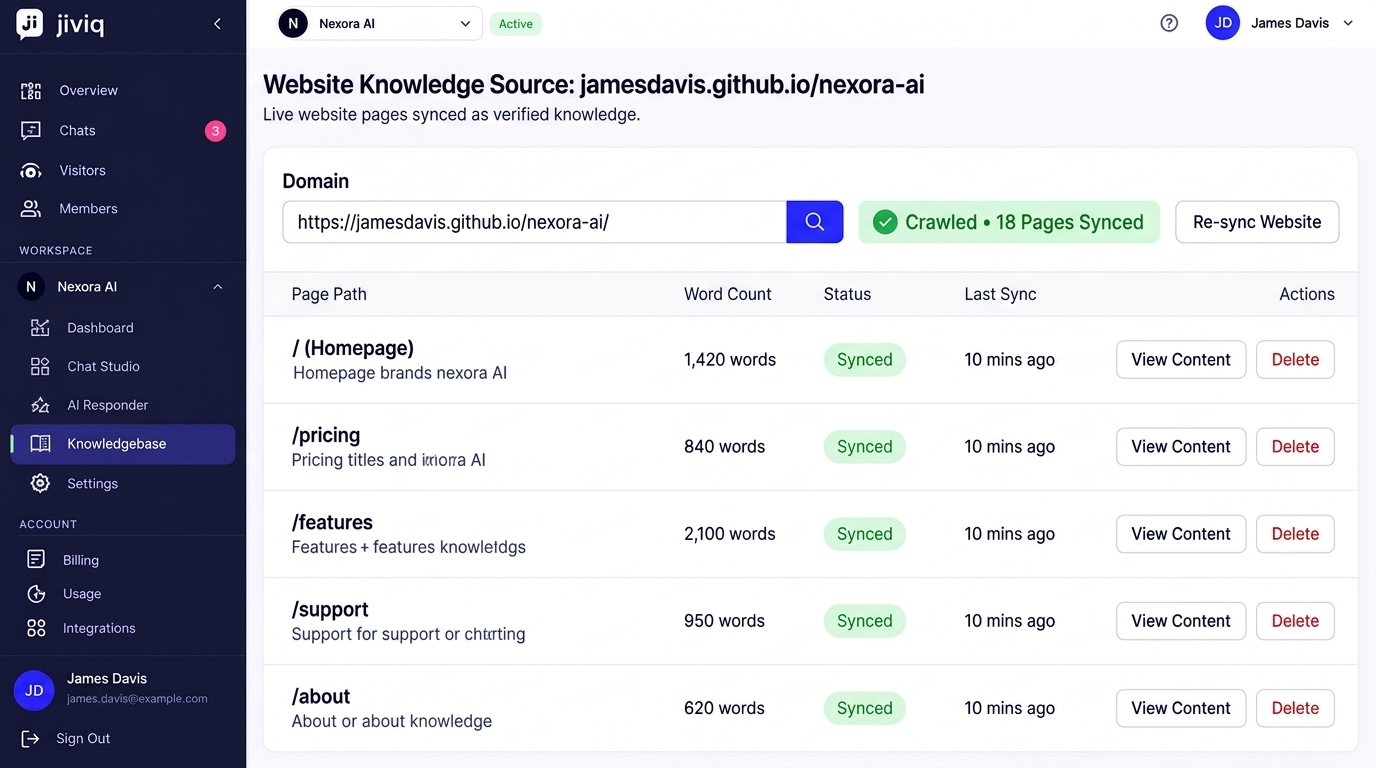
8. Understanding Import States
As JIVIQ ingests your website, each URL will display one of the following six states:
| Status Badge | What It Means in Plain Language | AI Availability |
|---|---|---|
| Queued | The page is scheduled in line and waiting for a crawler worker to begin reading it. | Not yet |
| Importing | JIVIQ is actively downloading the HTML, stripping scripts, and extracting body text. | In progress |
| Finishing up | Almost done! JIVIQ is converting clean text into semantic vector embeddings. (Note: This is normal progress, not a failure!) | Finishing |
| Ready | Completed! The page is fully indexed and JIVIQ can reference it in live customer chats immediately. | Active in AI answers |
| Already up to date | The page was re-checked and found to have no changes since the last sync. No duplicate indexing was needed. | Active in AI answers |
| Couldn't import | The page could not be read (e.g. 404 Not Found, required password login, or timed out). | Failed |
"Finishing up" Is Not a Failure
If you see "Finishing up", do not re-submit the URL. JIVIQ is finishing the final mathematical indexing in the background. It will automatically resolve to "Ready" within a few moments.
9. Example: The Nexora AI Implementation Journey
To see how website importing ties into the overall setup journey, consider our practical testing project, Nexora AI:
Widget Installation
The JIVIQ chat widget code was embedded on the live testing site: https://manishaysolanke.github.io/nexora-ai/
Knowledge Source Setup
Administrator James Davis navigated to Settings → Knowledgebase and created a source named "Nexora AI Knowledge".
Sitemap Ingestion
The sitemap URL was submitted to import the documentation and pricing pages into the Knowledge Base.
AI Answering
Website visitors ask questions, and the AI answers with verified facts grounded directly in the imported Nexora AI pages.
10. Questions About Website Importing
Browse questions across 5 categories to help you import and manage your website content:
JIVIQ securely fetches your public HTML pages, strips away navigation headers, cookie banners, and footers, and extracts the core textual facts. It then splits the text into clean semantic chunks and indexes them so your AI assistant can retrieve accurate answers during live chats.
No. JIVIQ can only import publicly accessible pages. Any content behind an authentication wall, private portal, or paywall cannot be fetched by the web scraper.
Ensure your public URLs are live, contain accurate pricing and policies, and do not block web crawlers via restrictive robots.txt headers. Make sure your sitemap is up to date if using sitemap import.
The official limit is up to 1,000 pages per sitemap import job. If your website has thousands of pages, use include patterns to import the most critical customer-facing sections (such as /help/ or /pricing).
Include patterns let you filter which URLs to import. For example, entering '/docs/' or '/help/' ensures that JIVIQ only indexes URLs containing those subpaths, ignoring unrelated marketing blogs or archive pages.
Most websites publish an XML sitemap at yourdomain.com/sitemap.xml or yourdomain.com/sitemap_index.xml. You can also inspect your website's robots.txt file to find the published sitemap location.
An llms.txt file is a lightweight, standardized markdown index published at yourdomain.com/llms.txt. It provides a clean, curated list of essential documentation and policy pages designed specifically for AI models to read without web clutter.
No. llms.txt is an optional modern standard. If your website does not have an llms.txt file, you can import your website using the standard Sitemap option or Single page method.
Yes. JIVIQ can parse both the index-style llms.txt file and full-text bundles published by your website.
No. This is a critical distinction: the Single page option only imports that one exact URL. It will not follow links or crawl the rest of your website. To import your entire website, use the Sitemap option.
Use Single page when you want to quickly add or refresh a specific, high-importance page—such as your /pricing page, a new /refund-policy page, or a special seasonal announcement.
Yes. You can import individual URLs as needed. However, if you have more than 5 to 10 pages, importing via your sitemap is much faster and easier.
No, 'Finishing up' is not a failure. It means JIVIQ has successfully fetched the page HTML and is completing vector embeddings in the background. JIVIQ finishes processing automatically without requiring any action.
This status occurs if the URL returned a 404 Not Found error, required login authentication, timed out due to slow server response, or was blocked by robots.txt permissions.
'Already up to date' indicates that JIVIQ checked the page and found that its text has not changed since the last sync. JIVIQ skips re-indexing to save time and prevent duplicate knowledge.