AI Responder Settings
Understand JIVIQ's AI responder settings, learn how Autopilot, Copilot, and Off operate, and see how workspace-level defaults interact with individual conversation overrides.
The AI responder setting dictates how your company's AI assistant engages with website visitors and leads. Whether you want fully automated 24/7 answers, AI draft assistance for your human team, or complete manual control, JIVIQ provides three distinct operational modes. Learn more about JIVIQ on our official homepage.
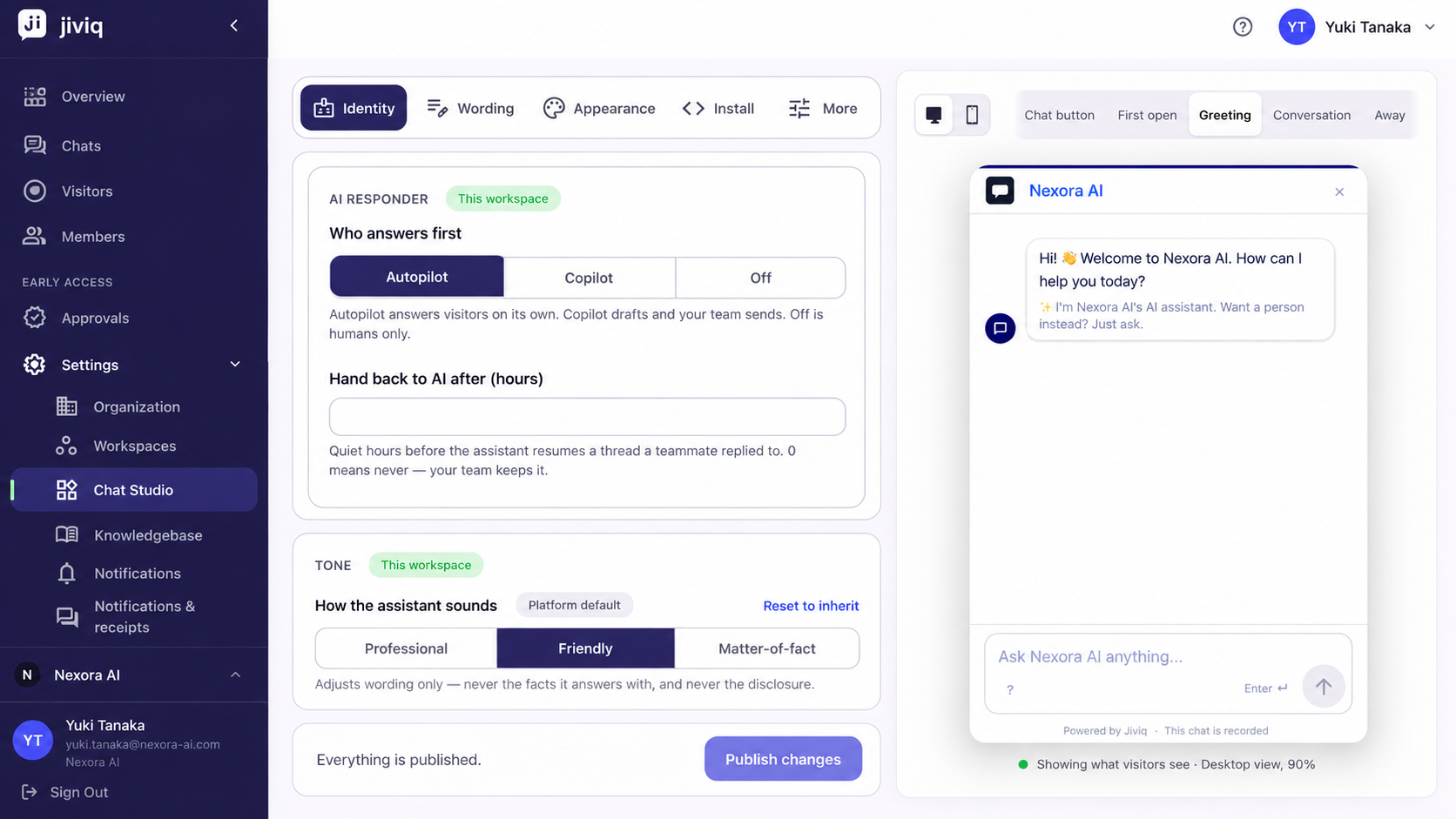
Autopilot Mode
In Autopilot mode, the AI assistant answers website visitors directly without requiring manual approval for each message:
The AI answers customer questions by referencing verified content in your Workspace Knowledge Base, ensuring factual accuracy.
Before any message is transmitted, the AI checks the response against safety policies and knowledge sources.
If the AI cannot answer or the visitor explicitly requests a human agent, the conversation is routed smoothly to your team inbox.
Configure how many quiet hours pass after a teammate replies before the AI may resume answering automatically (0 disables automatic handback; maximum is 168 hours / 1 week).
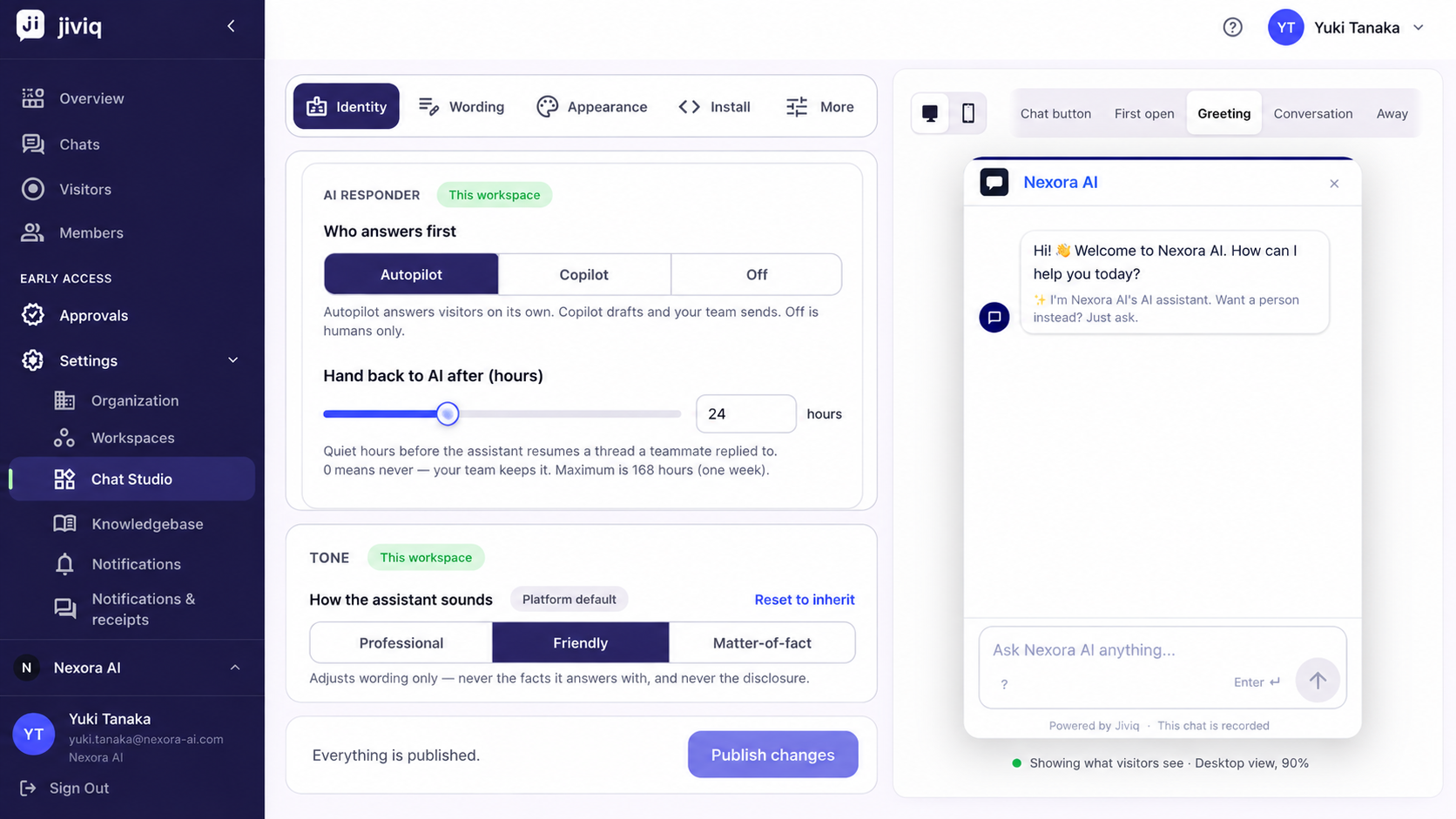
Copilot Mode (Default)
In Copilot mode, the operating principle is simple: AI drafts. Your team sends.
Automatic Draft Suggestions
When a visitor sends a message, JIVIQ AI generates an automatic draft inside the conversation composer based on your Knowledge Base.
Human Review & Control
Your team retains total editorial control: teammates can click Send, edit the draft content, or discard it entirely.
"Suggest Reply" Capability
Teammates can click the "Suggest reply" button next to the composer at any time to generate fresh response options.
Zero Unapproved Messages
The AI never sends messages to visitors on its own in Copilot mode, eliminating accidental or unvetted responses.
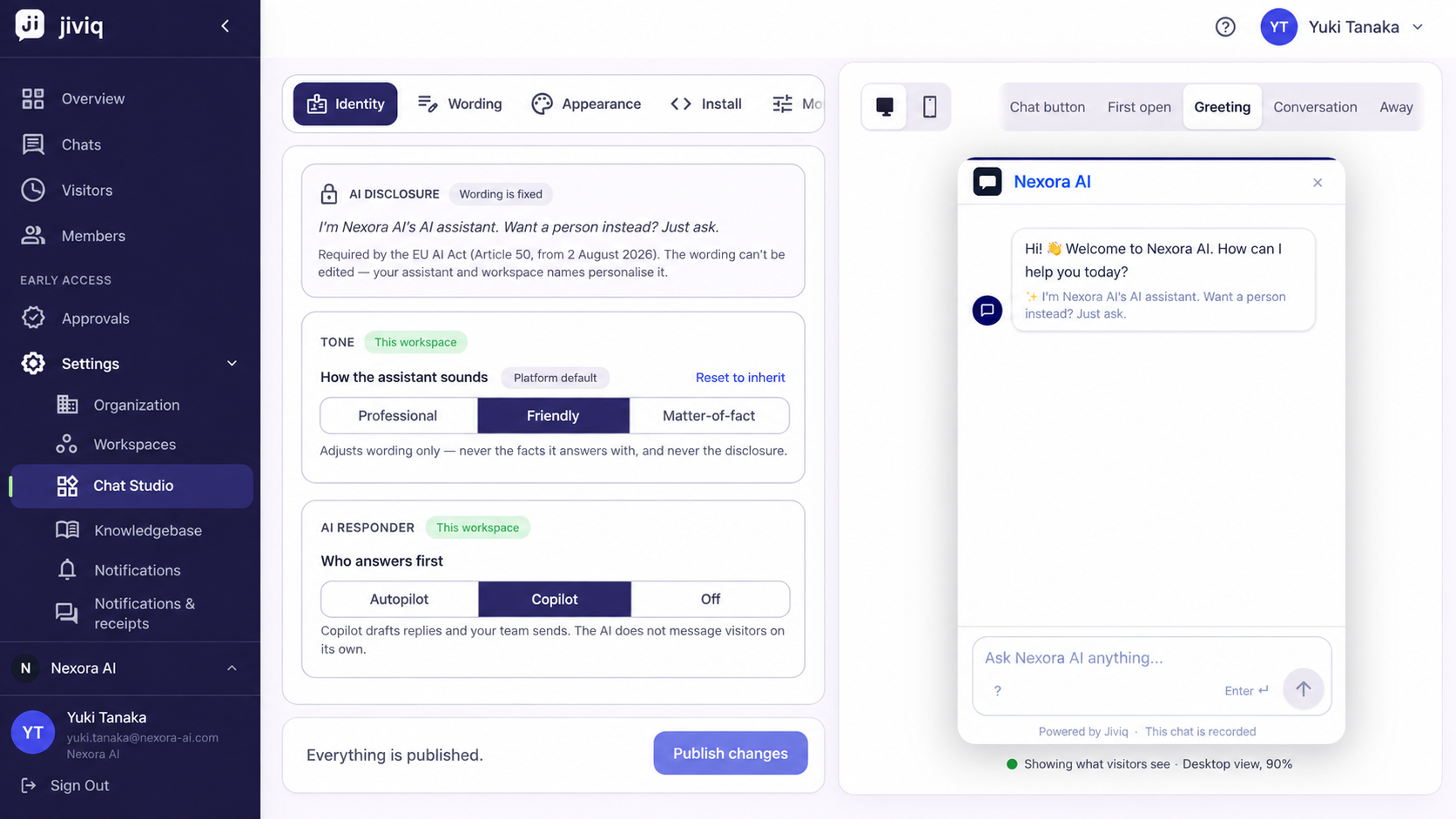
Off Mode (Humans Only)
In Off mode, AI automation is disabled across customer chat interactions:
- The AI does not reply to visitors.
- The AI does not generate automatic drafts in the composer.
- Your human team handles 100% of conversations manually through the inbox.
Off mode is always available on all accounts and is ideal for specialized support channels or teams with strict manual compliance requirements.
Per-Workspace Default vs. Per-Conversation Overrides
Understanding how Workspace defaults interact with individual chat threads is straightforward:
The AI Status Pill
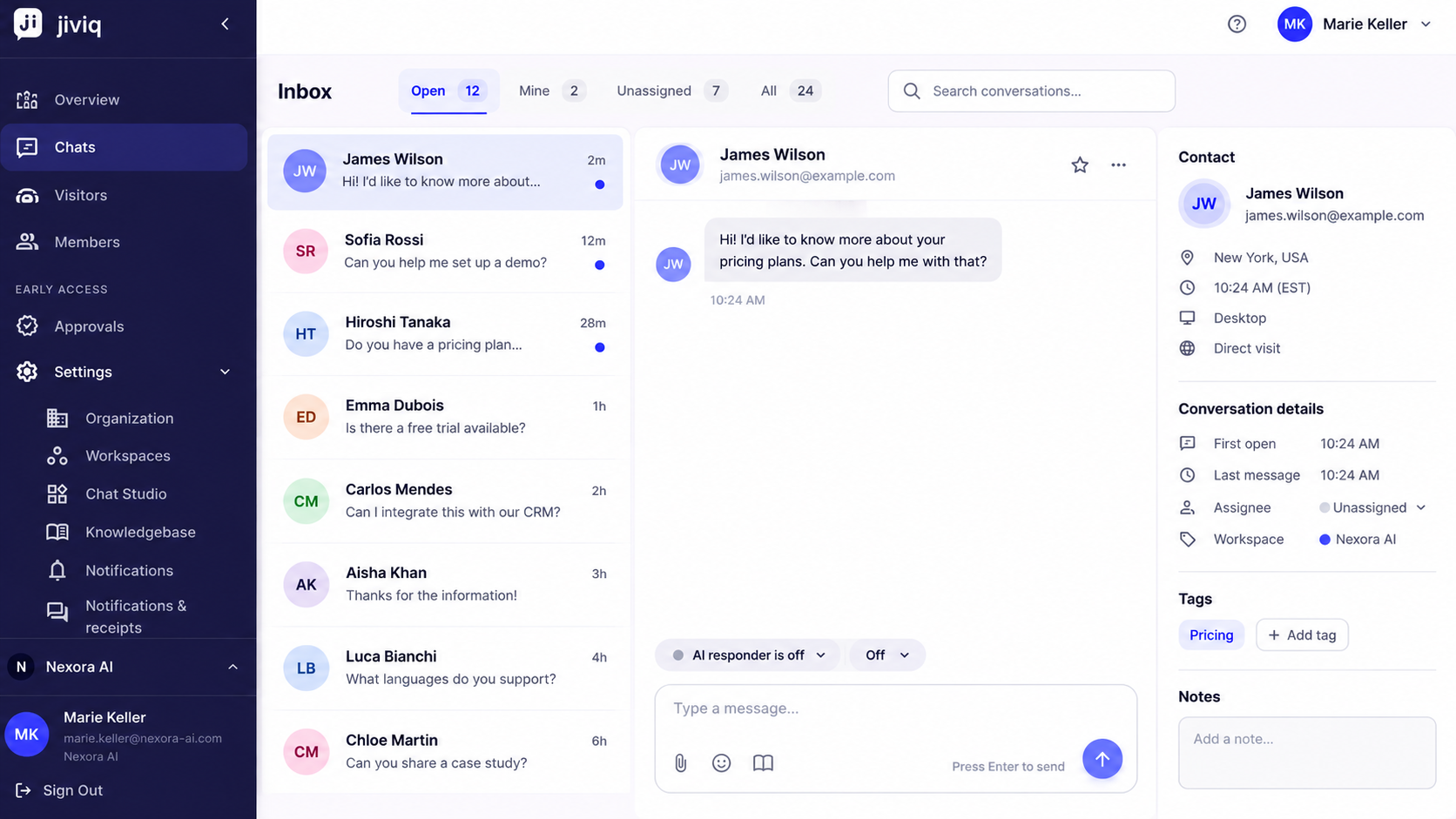
Above the reply composer in any active thread, an interactive AI status pill displays the current operational state:
AI · Answering
Indicates Autopilot is active and handling incoming visitor messages automatically.
AI · Drafts only
Indicates Copilot is active and preparing response drafts for your team.
AI · Paused — you're handling
Indicates a teammate has replied, pausing AI automation temporarily.
AI · Off
Indicates AI assistance has been disabled for this specific customer conversation.
Frequently Asked Questions
Browse questions by category to master JIVIQ AI responder configuration:
The AI Responder setting defines how JIVIQ handles incoming customer messages across your workspace. It determines whether AI answers visitors autonomously (Autopilot), prepares drafts for human review (Copilot), or remains inactive (Off).
Account owners and admins can configure the default AI mode by navigating to Settings → Workspaces inside the JIVIQ admin app.
No. Changes to your AI mode take effect instantly in real time without requiring a server reload, code updates, or widget reinstallation.
In Autopilot mode, the AI assistant answers customer messages directly 24/7. It references verified facts in your Knowledge Base and checks its response before sending it to the visitor.
This setting determines how many quiet hours must pass after a human teammate replies before the AI resumes answering automatically. Setting it to 0 disables automatic handback, with a maximum value of 168 hours (one week).
If the AI encounters a question outside its Knowledge Base or the visitor requests a human, the conversation is automatically handed over to your human team inbox.
Copilot mode provides AI assistance with human approval: AI drafts responses in the background, but your team reviews, edits, and sends every message.
No. In Copilot mode, the AI never sends a message autonomously. Drafts appear in the composer for your team to send, edit, or discard.
The 'Suggest reply' feature appears next to the conversation composer, allowing team members to generate an instant AI draft based on recent conversation context.
Off mode means humans only. The AI assistant does not reply to visitors and does not generate automated drafts, leaving all communication to your human team.
Yes. Off mode is always available across all accounts and workspaces regardless of plan tier.
Yes. Your shared customer record, conversation history, and contact metadata remain fully accessible even when AI response modes are turned Off.
Yes. The Workspace AI mode serves as the default, but teammates with write access can adjust the AI mode for any specific conversation. The conversation-level setting always wins.
The status pill above the reply box displays real-time states such as: 'AI · Answering' (Autopilot active), 'AI · Drafts only' (Copilot active), 'AI · Off' (AI disabled), and 'AI · Paused — you're handling' (human actively replying).
Any team member with write access to the inbox can change the AI status pill inside an open conversation.
Workspace Setup Sequence
Follow all four guides in the official Workspace Setup series:
Understanding Workspaces
Learn what a Workspace is, why it exists, and what components it brings together.
Workspace Settings
Configure your Workspace name, timezone, and workspace-level preferences.
AI Responder Settings
Understand Autopilot, Copilot, and Off response modes for your workspace.
Choosing Your AI Mode
A decision guide to select the right AI operating mode for your team.