Upload Documents to Your Knowledge Base
Learn how to add business documents directly to your JIVIQ Knowledge Base. Understand supported file formats, selectable text requirements for PDFs, background import statuses, and the official document replacement workflow.
What Is Knowledge Base?
Overview & grounding principles
Review →Create Knowledge Base
Initialize workspace repository
Review →Import Website
Crawl domains & sitemaps
Review →Upload Documents
Upload PDFs, Word docs & text files
Currently ReadingRefresh Content
Sync schedules & manual updates
Up Next →Connecting from Your Knowledge Base Journey
In our previous guides, you learned what the Knowledge Base is, how to create a Knowledge Base, and how to import your website pages. Uploading documents allows you to supply deeper business facts—such as internal manuals, comprehensive price lists, and formal policy documents—that might not live directly on your public website.
1. Why Upload Documents to JIVIQ?
While website scraping captures your public marketing pages, much of your company's deepest and most authoritative information lives inside standalone files: PDF fee schedules, employee handbooks, refund policies, product technical specifications, and support runbooks.
By uploading these files directly to your JIVIQ Knowledge Base, you empower your AI assistant to quote exact tier rates, reference nuanced policy stipulations, and assist customers with detailed answers that go far beyond standard homepage copy.
2. Supported File Types & Limits
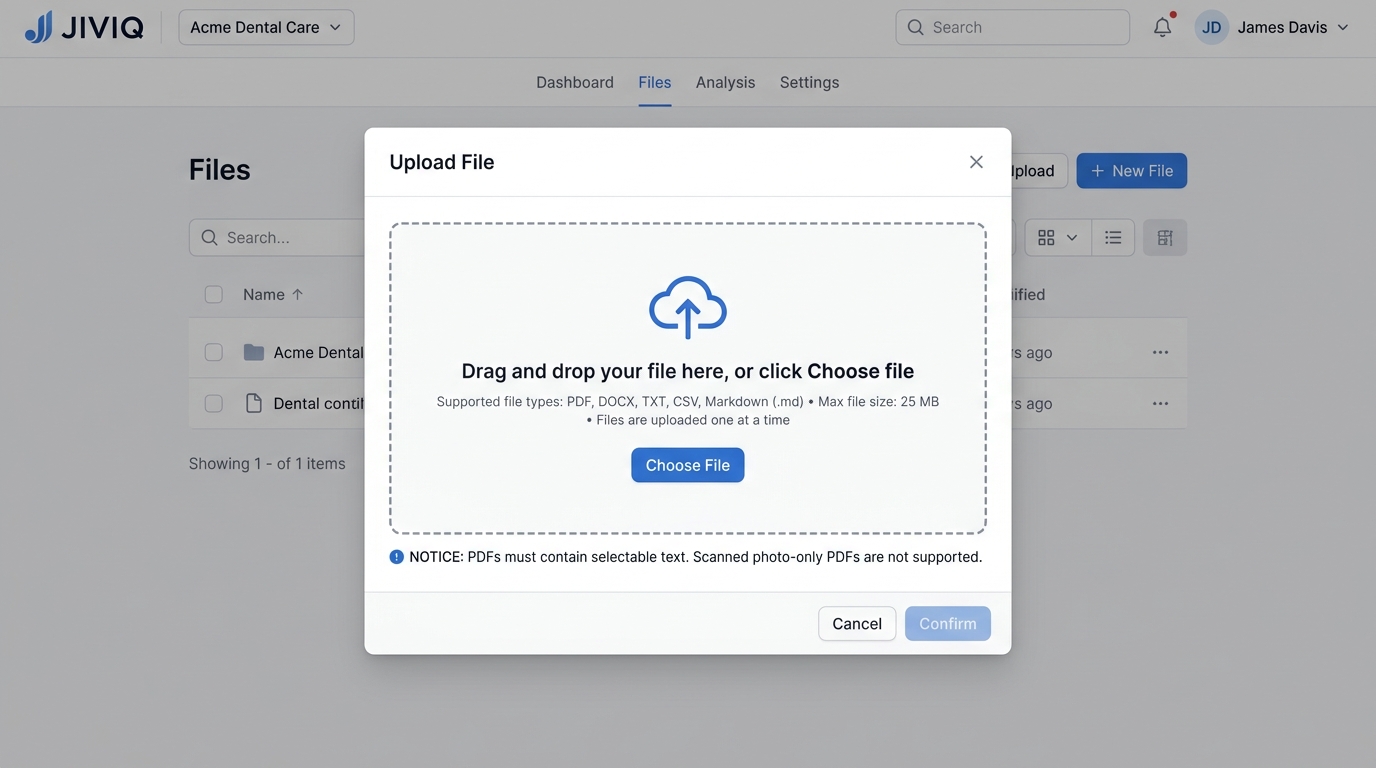
JIVIQ is intentionally engineered to parse clean, semantic textual content. The following 5 file formats are fully supported:
.pdf (Portable Document Format)
Ideal for formal brochures, product catalogs, price lists, and client onboarding guides with selectable text.
.docx (Microsoft Word)
Perfect for standard operational guidelines, terms of service, warranty rules, and frequently asked questions.
.txt (Plain Text)
Clean, lightweight text files containing raw business notes, opening hours memos, and direct instructions.
.csv (Comma-Separated Values)
Structured tabular data such as product SKU lists, feature comparison tables, and fee matrices.
.md (Markdown)
Formatted documentation, technical guides, API explanations, and GitHub-style text documents.
3. Important PDF Rule: Selectable Text Only
A PDF Must Contain Real Selectable Text
JIVIQ cannot read scanned photos or image-only PDFs. For the AI to index your document, the text inside the PDF must be digitally selectable with your cursor. If your document was scanned using a physical office scanner without OCR, JIVIQ will not be able to extract the words.
Quick 5-Second Test:
Open your PDF in Chrome, Safari, or Acrobat. Click and drag your cursor over any paragraph.
4. Files Not Currently Supported
To maintain high response speed and eliminate corrupted data, JIVIQ does not currently support the following file types:
Raw photos or flyers cannot be indexed as knowledge.
Export your spreadsheet as a .csv file before uploading.
Use the Website Ingestion feature instead.
Must be processed with OCR before upload.
5. How to Upload Documents to JIVIQ
Uploading a document takes under thirty seconds. Follow these simple steps:
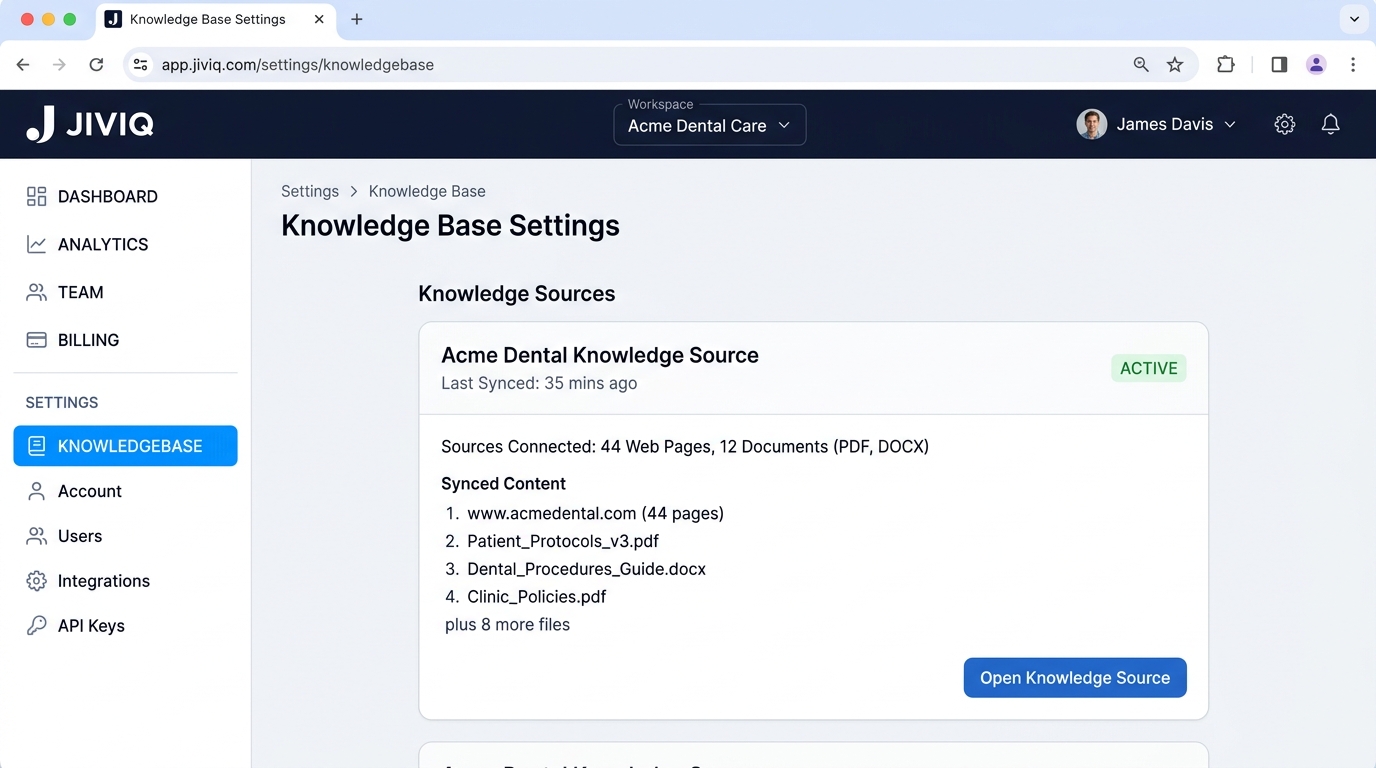
Sign in to app.jiviq.com
Log in using your administrator or owner credentials and select your active workspace.
Go to Settings → Knowledgebase
From the left navigation sidebar, click Settings, then choose Knowledgebase.
Open a Knowledge Source
Click on your desired Knowledge Source card (e.g. Acme Dental Knowledge Source) or click Open Knowledge Source.
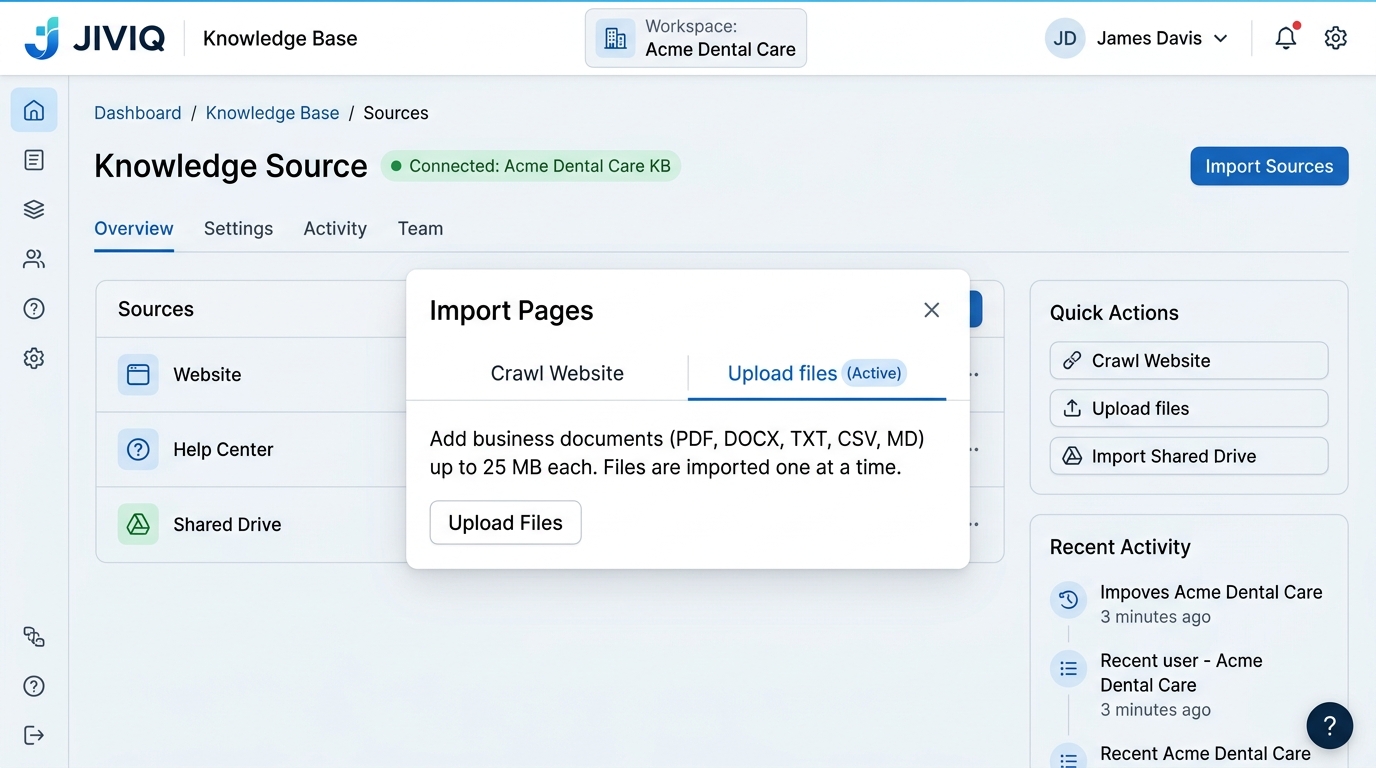
Choose "Upload files" in the Import Pages Card
Inside the Knowledge Source view, look for the Import pages card and select the Upload files option.
Drag File into the Dropzone or Click "Choose file"
Drag your document from your computer desktop directly into the dashed upload area, or click the blue Choose file button to open your file browser.
Wait for the Upload Handshake
Your browser securely uploads the file to JIVIQ's encrypted cloud storage.
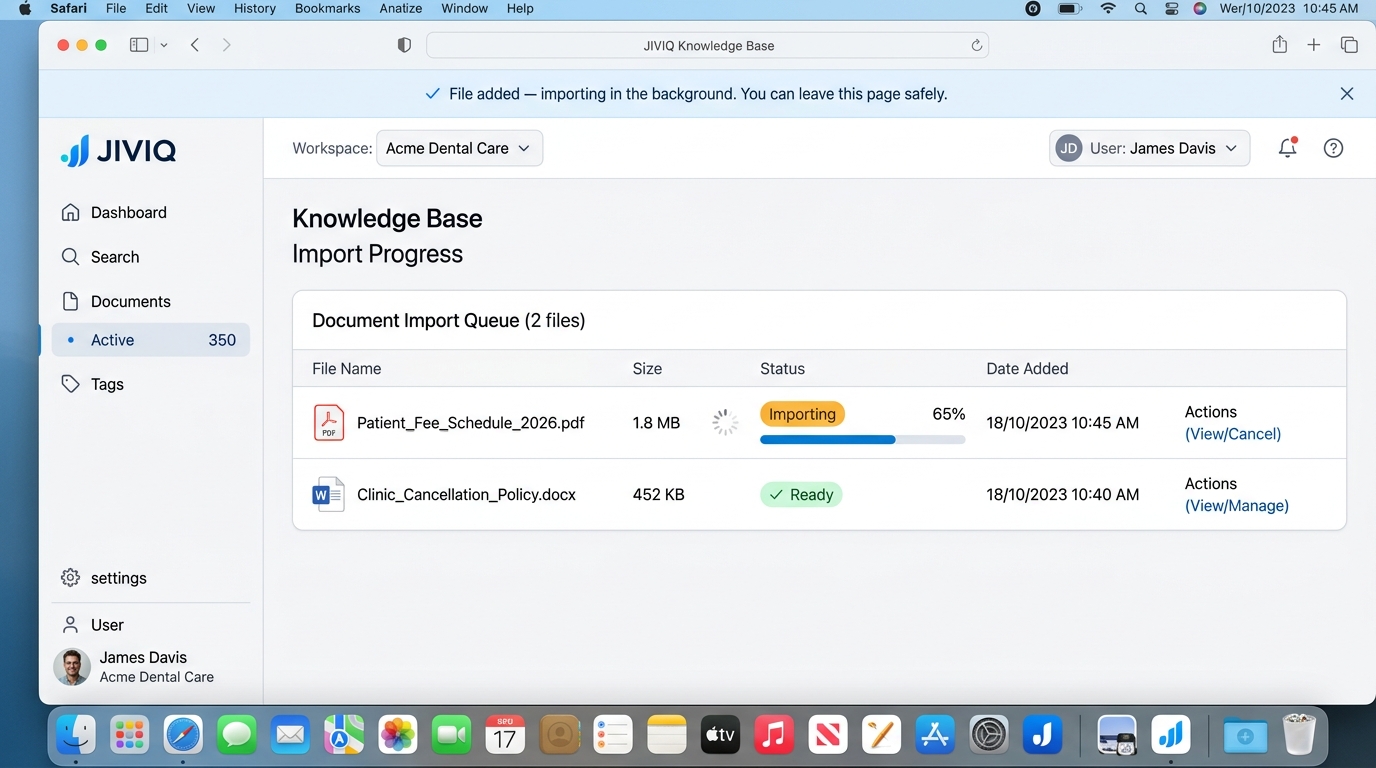
File Added — Importing in the Background
You will immediately see the banner: "File added — importing in the background. You can leave this page safely." You do not have to keep this browser tab open.
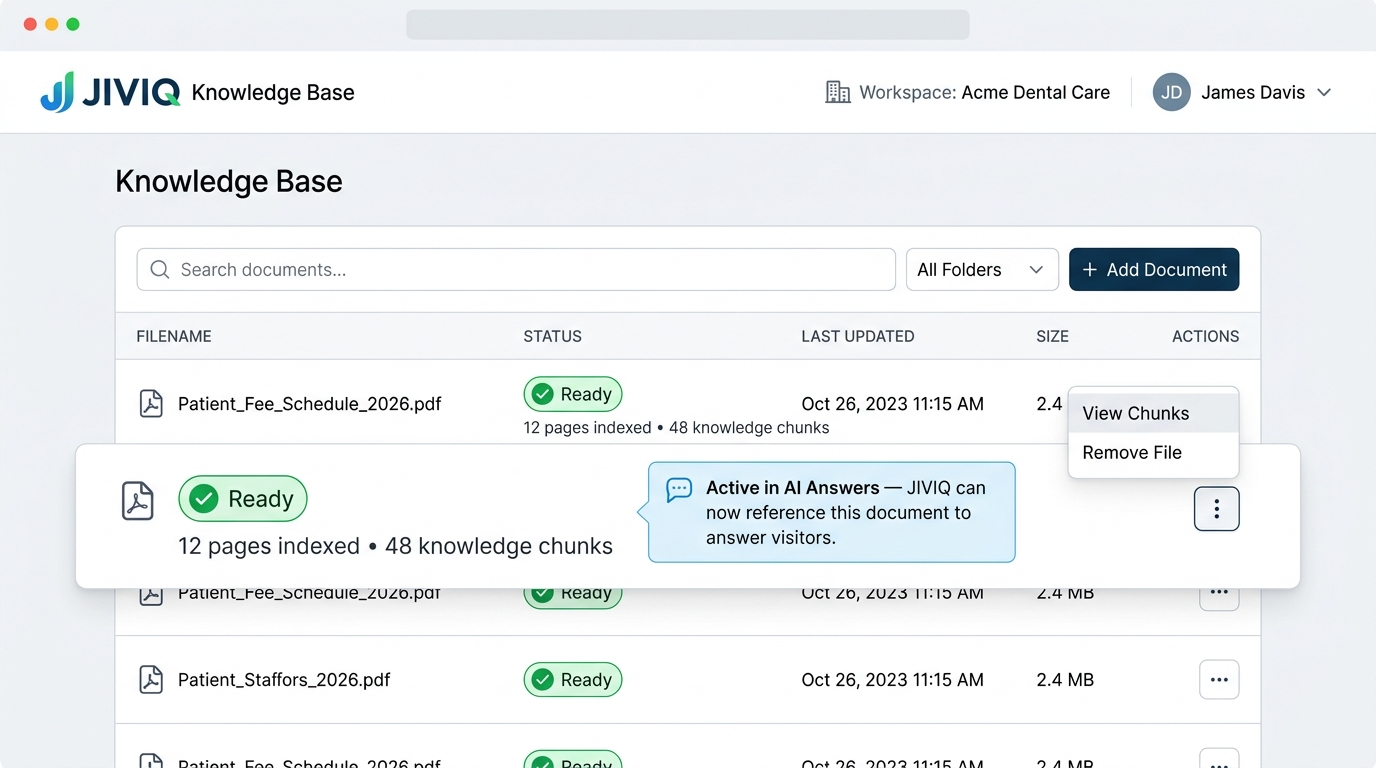
Wait Until the Document Becomes "Ready"
Once parsing completes, the status badge turns green and reads Ready. Your AI assistant can immediately begin using the document in customer answers!
6. Understanding Import Statuses
During the ingestion process, each file progresses through five distinct lifecycle states:
| Status Badge | What It Means | Can AI Answer From It? |
|---|---|---|
| Queued | The file is waiting in the processing pipeline behind other files. | Not yet |
| Importing | JIVIQ is actively parsing paragraphs, tables, and text structures. | Not yet |
| Finishing up | Text chunks are converted into searchable semantic embeddings. | In progress |
| Ready | Fully indexed! JIVIQ can reference this document in real-time visitor chats. | Yes, immediately |
| Couldn't import | Processing failed (file over 25 MB, password-protected, or image scan lacking selectable text). | Failed |
Nothing Extra to Turn On
When a document becomes Ready, there is no manual switch, toggle, or deploy button to press. The newly indexed facts are automatically available to your AI assistant on your live website chat immediately.
7. Recommended Business Documents
Not all documents belong in your AI's Knowledge Base. Upload clean documents that directly help answer customer inquiries:
task_alt High-Value Documents to Upload
Comprehensive rate sheets, consultation fees, and subscription packages.
Clear rules on appointment cancellations, deposit refunds, and exchange windows.
Technical specifications, procedure breakdowns, preparation instructions.
Compiled answers to the most frequent questions your team handles weekly.
highlight_off Documents to Avoid
Do not upload sensitive accounting records, payroll sheets, or tax forms.
Image-only receipt photos cannot be read by the text parser.
Do not upload employee performance evaluations or private contact info.
Avoid old versions to prevent the AI from quoting obsolete rates.
8. Replacing & Updating Documents
Business information changes over time. When your pricing updates or your clinic policies change, follow the official two-step document replacement workflow:
Remove the Old File
In your Documents list, click the actions menu (three dots) next to the outdated file and select Remove File. Confirm the removal.
Upload the New Version
Upload your revised document (e.g. Pricing_Schedule_2027.pdf). As soon as it reaches Ready, the AI will only quote the new facts.
Removal Is Permanent & Instant
When you remove a file, its semantic index is deleted immediately across all live conversations. This action cannot be undone. The AI will never reference that document's facts again unless you re-upload the file.
9. Who Can Upload Documents?
To guarantee that only verified company materials are taught to your AI assistant, JIVIQ enforces strict role-based access controls:
Have full authorization to drag-and-drop documents, initiate background imports, remove outdated files, and view indexed knowledge chunks.
Full Upload AccessCan converse with customers in the Inbox and view which documents were cited in AI answers, but cannot upload or delete knowledge sources.
Read-Only Access10. Frequently Asked Questions
Browse questions across 5 categories to master document uploads in JIVIQ:
JIVIQ officially supports five document formats: PDF (.pdf), Microsoft Word (.docx), Plain Text (.txt), Comma-Separated Values (.csv), and Markdown (.md). Unsupported file types include HTML, Excel (.xlsx), image files (PNG, JPG), and scanned PDFs without selectable text.
The maximum file size is 25 MB per document. If you have a larger manual or catalog, consider dividing it into topical chapters or converting large image-heavy pages into text-focused files before uploading.
Files are uploaded one at a time. This ensures that JIVIQ can parse, validate text encoding, chunk, and index every document with maximum accuracy before processing the next file.
Sign in to app.jiviq.com, navigate to Settings → Knowledgebase, open your desired Knowledge Source, locate the 'Import pages' card, and click the 'Upload files' option to open the dropzone.
No. As soon as a document reaches the 'Ready' status, JIVIQ automatically includes it in your AI's knowledge pool. There are no additional switches or toggles needed.
No. For security and knowledge governance, only Workspace Owners and Administrators can upload, re-index, or remove documents in the Knowledge Base.
JIVIQ extracts semantic text to understand and formulate grounded AI answers. If a PDF is merely a photo, scan, or raster image without selectable digital text, the parser cannot extract the characters or sentences.
Not directly as a raw image scan. You must first run Optical Character Recognition (OCR) using software like Adobe Acrobat or Apple Preview to turn the scanned images into real selectable text before uploading.
Open the PDF in your web browser or PDF viewer and try dragging your mouse cursor to highlight a sentence. If you can highlight and copy the text to your clipboard, JIVIQ will be able to process it.
'Queued' means the document is waiting in line; 'Importing' means JIVIQ is actively parsing and chunking text; 'Finishing up' means embeddings are being stored; 'Ready' indicates the document is active in AI answers; and 'Couldn't import' means processing failed (e.g. file corrupted or lacks selectable text).
Yes. Once you see the notification 'File added — importing in the background', the indexing job runs securely on our servers. You can close your browser tab or navigate elsewhere without interrupting the import.
Check that the file is under 25 MB, has real selectable text, is not password-protected or corrupted, and matches one of the five supported formats (PDF, DOCX, TXT, CSV, MD). Fix the issue and re-upload.
Follow the official two-step replacement workflow: (1) Click the three dots next to the old document and select 'Remove File', then (2) upload the updated version. This prevents contradictory or obsolete information from lingering in AI memory.
The AI stops using the document's contents immediately across all customer chats. Its vector chunks are permanently purged from your active knowledge index.
No. Removing a file is permanent and cannot be undone. If you remove a file by mistake, you must upload the original document again from your computer.