Copy the JIVIQ Widget Code
Locate and copy your workspace-specific embed script from Chat Studio. Learn what each parameter does and how to ensure proper asynchronous loading.
Install JIVIQ
Overview & 9-step roadmap
Review →Add Domain
Domain allow-listing & rules
Review →Copy Code
Obtain your workspace script
Currently ReadingEmbed Code
Placement before </body>
Next →Verify Widget
Test live chat & inbox
View →1. Locating the Installation Area in Chat Studio
Once your website domain is authorized in JIVIQ (as described in Step 2: Add Your Website Domain), your workspace is ready to generate its production embed code.
In the official JIVIQ application (app.jiviq.com), the widget installation code is located inside Chat Studio → Install.
JIVIQ App → Select Workspace → Chat Studio (Left Sidebar) → Install (Top Tab) → Website Code.
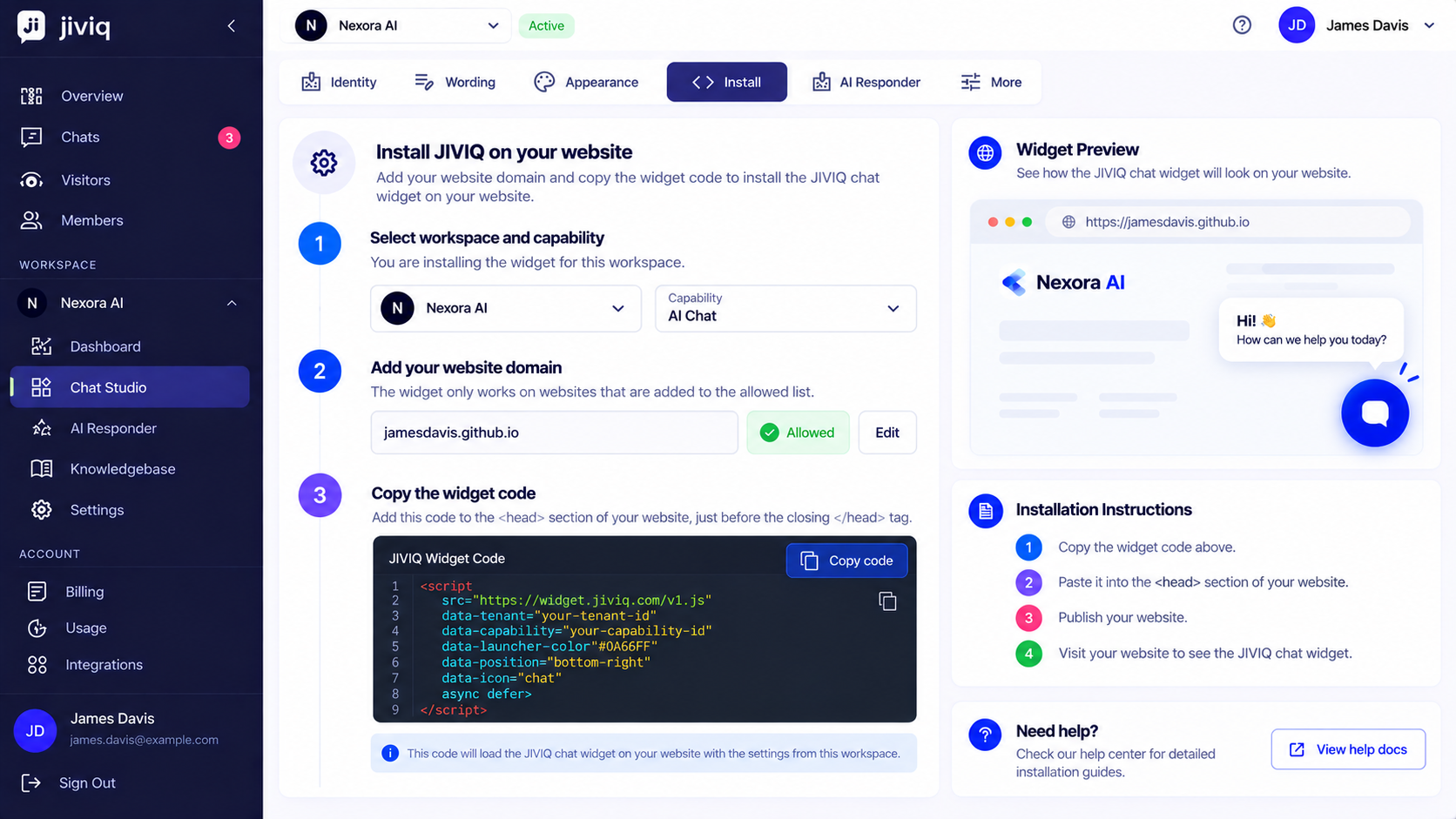
2. Understanding the Generic Widget Script
The JIVIQ widget is loaded through a clean, single HTML <script> element:
<script
  src="https://widget.jiviq.com/v1.js"
  data-tenant="your-business"
  data-capability="your-workspace-id"
  data-launcher-color="#000666"
  data-position="bottom-right"
  data-icon="chat"
  async defer>
</script>The generic placeholder values (your-business and your-workspace-id) shown above will NOT connect to your assistant. You must copy the exact script generated inside YOUR own JIVIQ account dashboard.
3. Script Attributes & Parameters Breakdown
Every attribute in the JIVIQ script tag serves a specific function in initializing, styling, and optimizing the chat experience:
| Attribute | Example Value | Type | Function & Description |
|---|---|---|---|
src | https://widget.jiviq.com/v1.js | Required | Points to JIVIQ's global edge CDN loader file. Never modify this URL. |
data-tenant | your-business-slug | Required | Unique account identifier ensuring tenant isolation and database separation. |
data-capability | tenant.workspace-id | Required | Identifies your specific AI brain, skills, knowledge base, and prompt persona. |
data-launcher-color | #000666 | Optional | The background color of the floating chat bubble in hex or RGB format. |
data-position | bottom-right | Optional | Controls screen anchor point: bottom-right or bottom-left. |
data-icon | chat | Optional | Sets the launcher glyph: chat, support, or sparkle. |
async defer | Boolean flags | Performance | Ensures non-blocking background script loading for lightning-fast page speed. |
4. Step-by-Step: Copying Your Unique Code
Follow these straightforward steps to copy your unique snippet:
Ensure the workspace dropdown in the top-left corner reflects the intended business unit or website project.
Click Chat Studio in the main navigation menu, then click the Install tab at the top of the screen.
Verify that your bare domain (e.g., yourdomain.com) is listed with an Active green status badge.
Click the Copy Code button located above the snippet box. A toast notification will confirm that the code is safely copied to your clipboard.
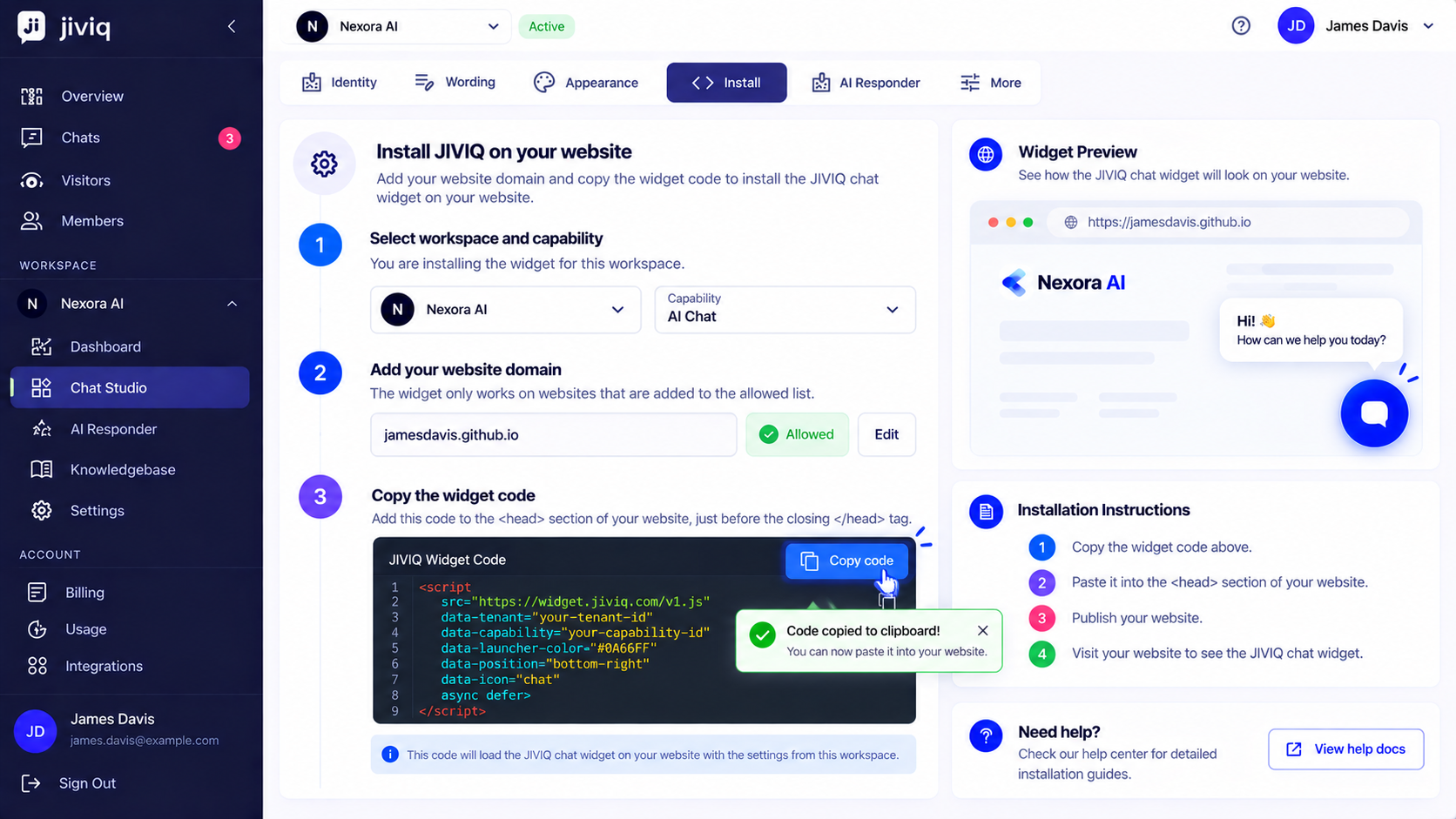
5. Important: Copy Your Own Account Code
In our live test case on Nexora AI (https://jamesdavis.github.io/nexora-ai/), the test installation used:
<!-- DO NOT COPY THIS ACCOUNT-SPECIFIC CODE FOR YOUR SITE -->
<script
  src="https://widget.jiviq.com/v1.js"
  data-tenant="nexora-ai"
  data-capability="nexora-ai.nexora-ai"
  data-launcher-color="#000666"
  data-position="bottom-right"
  data-icon="chat"
  async defer>
</script>
The values data-tenant="nexora-ai" and data-capability="nexora-ai.nexora-ai" belong strictly to the Nexora AI demonstration account. If copied to your website, visitors would converse with the Nexora demo rather than your company's AI. Always generate and copy your own unique credentials from JIVIQ.
6. Visual Interface Walkthrough
Review these screenshots showing how the installation and code copying workflow appears in JIVIQ:
7. Frequently Asked Questions
Common inquiries about script generation, asynchronous loading, and workspace capabilities:
Sign in to app.jiviq.com, select your target Workspace, click 'Chat Studio' in the sidebar navigation, and select the 'Install' tab. Your generated code is located in the 'Website Code' section.
The widget snippet contains unique 'data-tenant' and 'data-capability' parameters. These cryptographic keys route visitor messages to your specific AI knowledge base, business rules, and team inbox.
No. Never copy widget code from another company or sample site like Nexora AI. Doing so would connect your website visitors to someone else's workspace. Always copy your own snippet from your JIVIQ dashboard.
The 'data-tenant' attribute identifies your root organization or company account within JIVIQ's multi-tenant architecture, ensuring strict data isolation.
The 'data-capability' attribute specifies the exact AI assistant and skill pipeline assigned to this widget, directing visitor queries to the correct responder model.
Yes. You can adjust 'data-launcher-color' (e.g., #000666 or your brand hex) and 'data-position' ('bottom-right' or 'bottom-left') directly within the script or inside the JIVIQ Chat Studio visual customizer.
Both 'async' and 'defer' ensure that the widget script loads non-blockingly in the background. Your page HTML, styling, and hero content render at maximum speed without waiting for the widget.
The JIVIQ core bootstrap loader is ultralight (~4KB compressed) and served through a global Content Delivery Network (CDN) with sub-30ms latency.
No. Because of asynchronous CDN delivery and deferred execution, JIVIQ maintains a neutral impact on Largest Contentful Paint (LCP) and First Input Delay (FID).
Yes. Each Workspace generates a distinct capability key. If you manage multiple brands or client sites, make sure you select the correct workspace from the top switcher before copying your code.
If you change workspace configurations or transfer ownership, you can copy the updated snippet from Chat Studio and update the script tag on your website.
No. A single webpage should only contain one JIVIQ script tag to prevent launcher collision and session state conflicts.
Ensure you have completed Step 2 (adding at least one authorized domain). JIVIQ requires domain registration before generating active production snippets.
Some CMS rich-text editors convert quotes into HTML entities (like "). Ensure you paste the snippet into a raw HTML block or Code Embed field, not a rich text visual editor.
Visit our developer docs at https://jiviq.com/help/website-installation/install-jiviq-on-your-website or explore custom event hooks at https://jiviq.com/help/chat-customization/customize-chat-panel.