Refresh Knowledge Base Content
Learn what happens when your website changes after being imported into JIVIQ. Understand the "Refresh from website" action, how JIVIQ reuses saved sources, what "Already up to date" means, and how to resolve individual failed pages.
What Is Knowledge Base?
Grounding principles & overview
Review →Create Knowledge Base
Add knowledge source in Settings
Review →Import Website
Sitemap, llms.txt & single page
Review →Upload Documents
Index PDFs, Word docs & guides
Review →Refresh Content
Re-sync website changes on demand
Currently Reading1. What Happens When Website Content Changes?
A Real-World Example
Imagine you imported your pricing page last Monday. Today you changed the price on your website. JIVIQ does not automatically change the imported copy just because your website changed. You need to refresh the website source.
Websites evolve constantly—you update service fees, modify business hours for the holidays, add new staff members, or publish revised return policies. Because JIVIQ respects your server resources and strictly preserves factual grounding, it does not continuously crawl your site without permission.
Until you tell JIVIQ to refresh, your AI assistant will continue to answer customer questions using the snapshot of your website captured during your previous import. Clicking Refresh from website updates this snapshot in just a few clicks.
2. The Official Refresh Process
Refreshing your website content requires no re-typing of URLs. Follow these 8 steps:
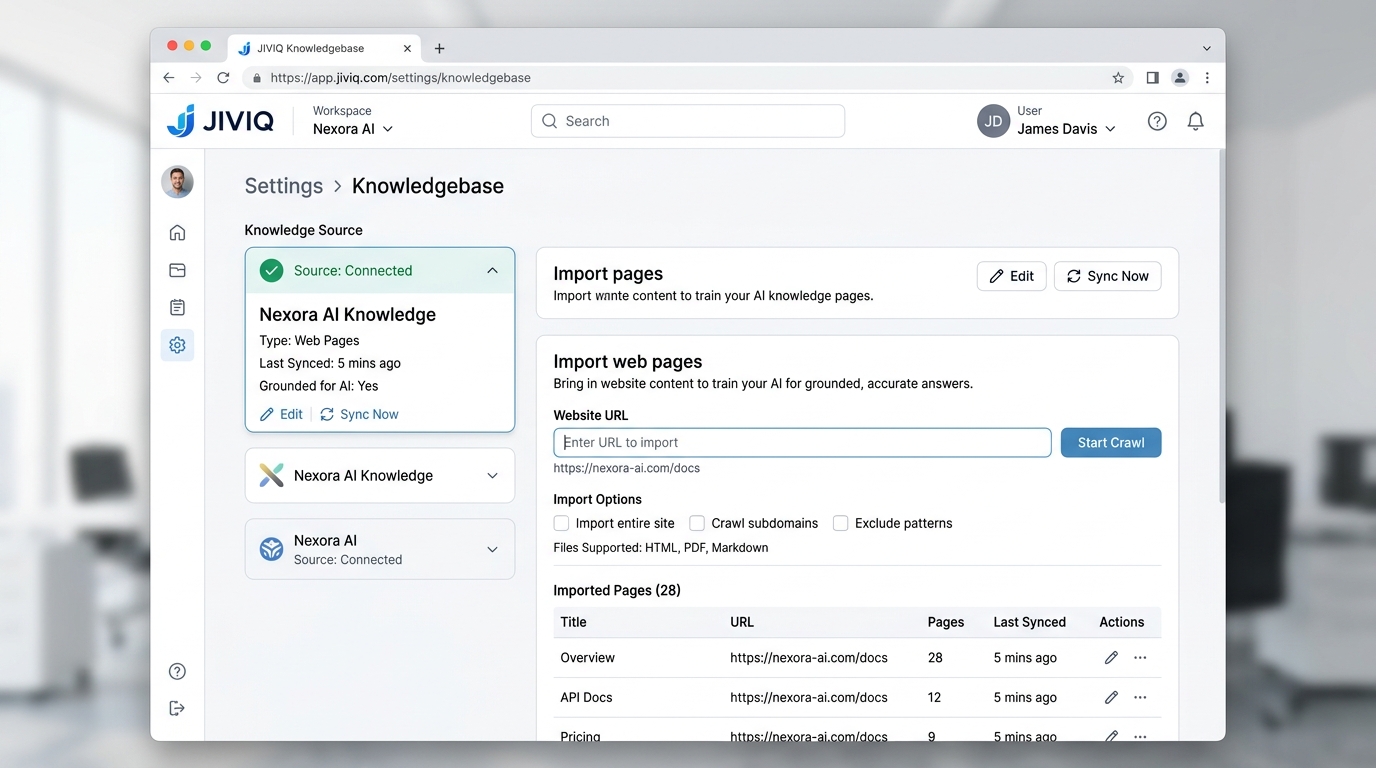
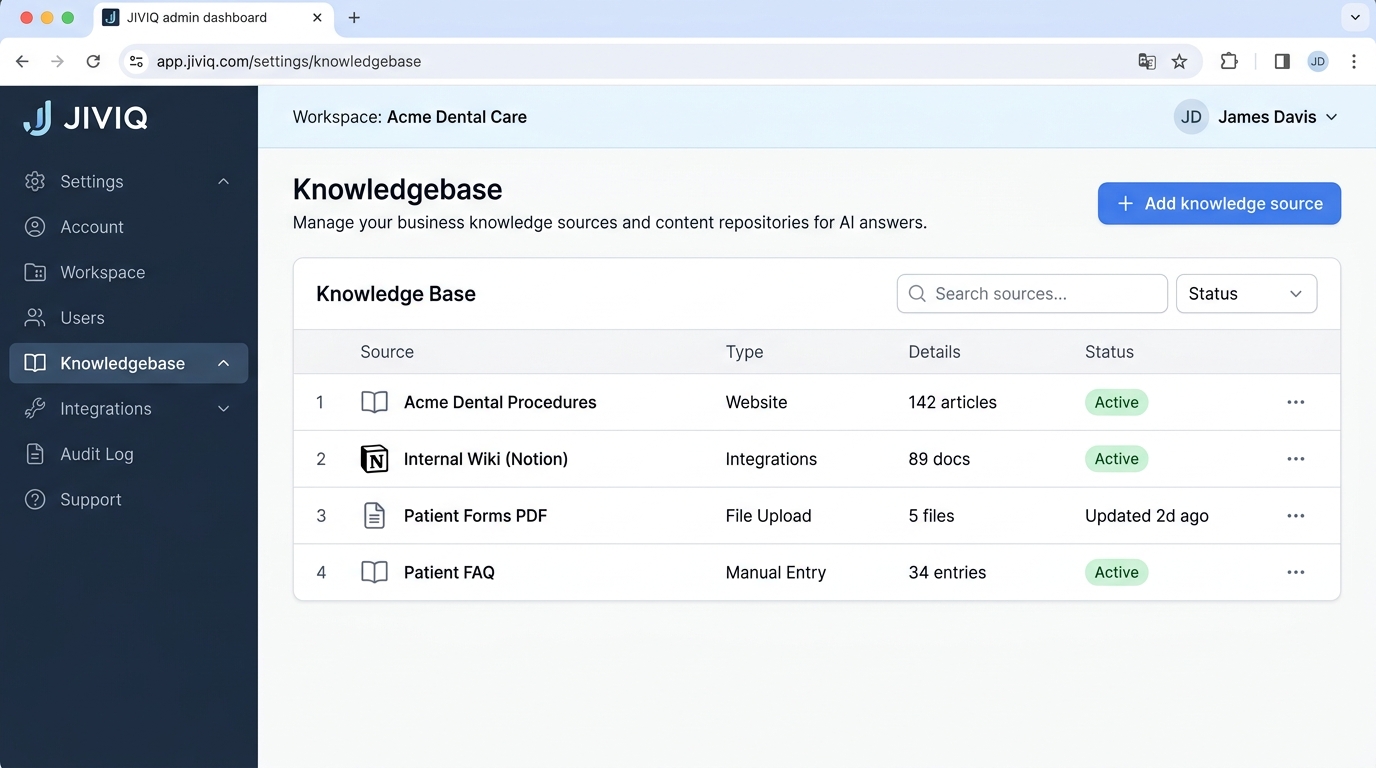
Go to Settings → Knowledgebase
Sign in to app.jiviq.com and click Settings in the sidebar, then select Knowledgebase.
Open the Relevant Knowledge Source
Select the Knowledge Source that contains your connected website pages.
Find the Website Source
Locate the connected website entry (e.g., your sitemap or domain URL) in your sources table.
Click "Refresh from website"
Click the primary Refresh from website button (or Sync Now icon) on your website source card.
JIVIQ Reuses the Saved Source
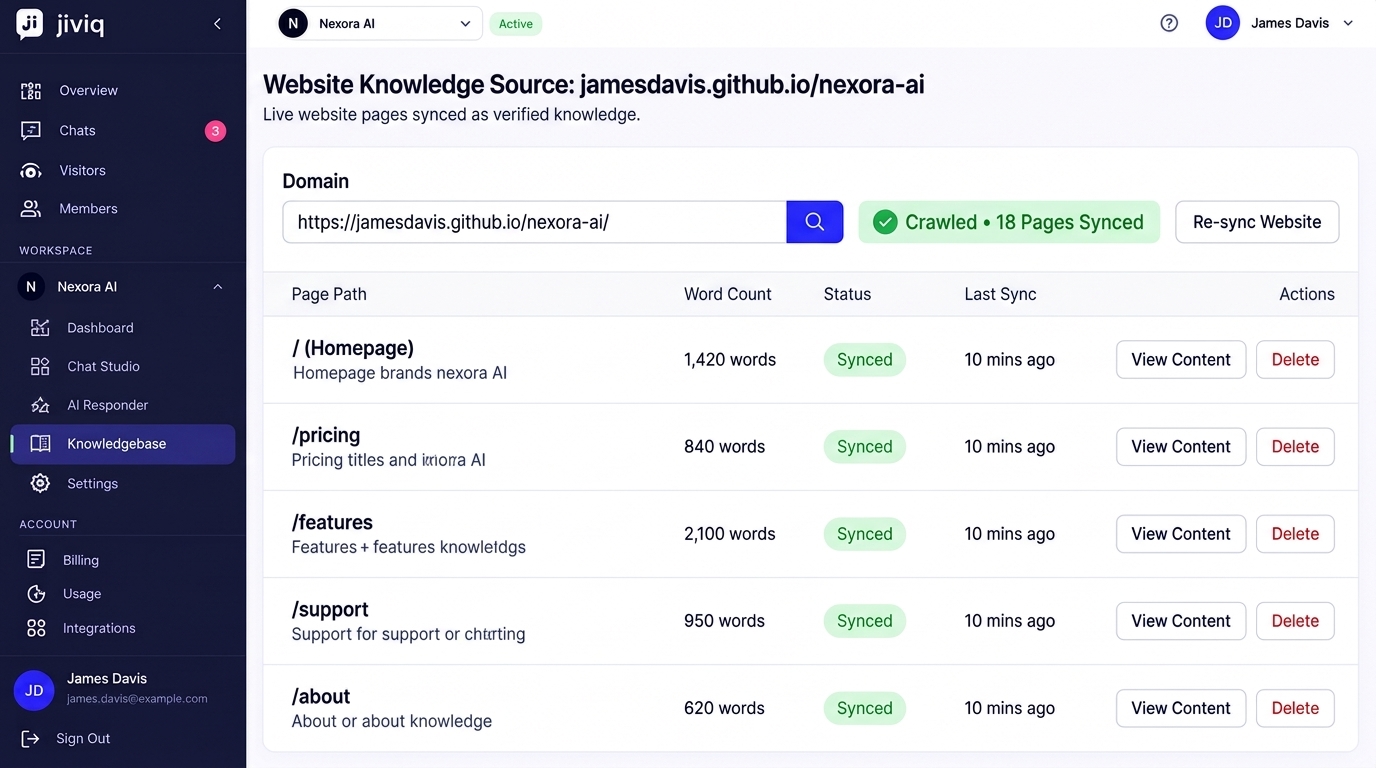
JIVIQ automatically retrieves the original sitemap, llms.txt, or single page URL you initially configured. You do not need to re-enter your link.
Wait for the Refresh to Finish
JIVIQ scans the pages. Because unchanged pages are skipped, refreshes complete substantially faster than initial imports.
Check the Import Status
Confirm that modified pages show Ready and unaltered pages show Already up to date.
Review the Documents List
Verify that your updated pages appear in the Documents table with the latest timestamp. The AI begins using the new facts immediately.
3. How JIVIQ Reuses Saved Sources
When you click Refresh from website, JIVIQ checks what configuration was originally established:
Sitemap Source
If you originally imported via XML sitemap, JIVIQ re-fetches that sitemap URL, discovers any newly added or modified URLs, and applies your original include patterns.
llms.txt Source
If you imported via an llms.txt content index, JIVIQ reads the updated markdown manifest and refreshes the designated documentation files.
Single Page Source
If you imported an isolated page URL (such as /pricing), JIVIQ re-fetches only that exact public URL without crawling any outside links.
Import Running? Refreshes Are Paused
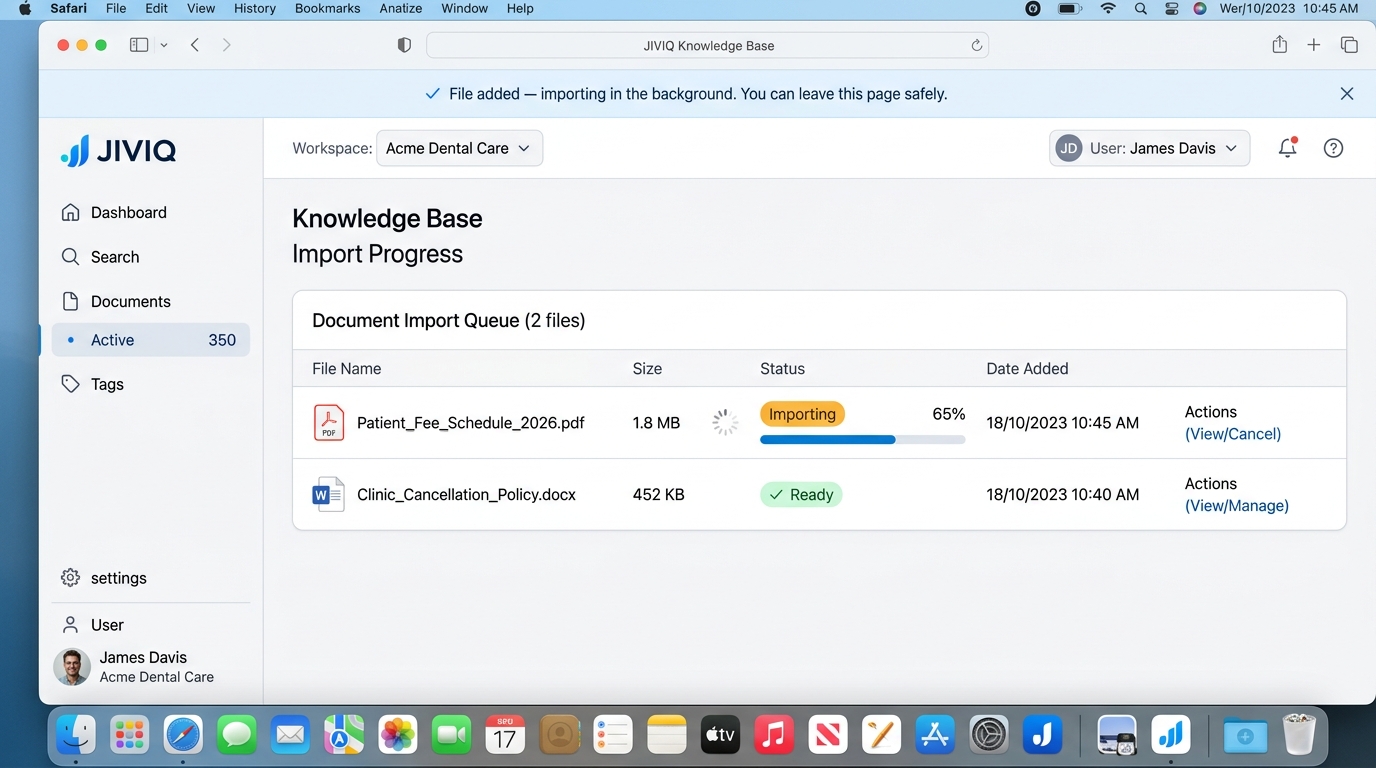
If an import or upload job is already running in your workspace, new refresh jobs are safely paused and queued until the active process completes. This guarantees database consistency and eliminates conflicting indexing jobs.
4. Understanding "Already up to date"
One of the most powerful features of JIVIQ is smart differential syncing. When you re-scan a sitemap containing 100 pages, you might have only modified 2 of them.
JIVIQ inspects the body content of every page. If the text has not changed since the last sync, JIVIQ marks the URL as Already up to date.
Because unchanged pages don't need to be parsed, chunked, or re-embedded, a refresh often takes just seconds instead of several minutes.
Your knowledge base stays clean and organized without redundant duplicate data.
5. The "Last Refreshed" Timestamp & Documents List
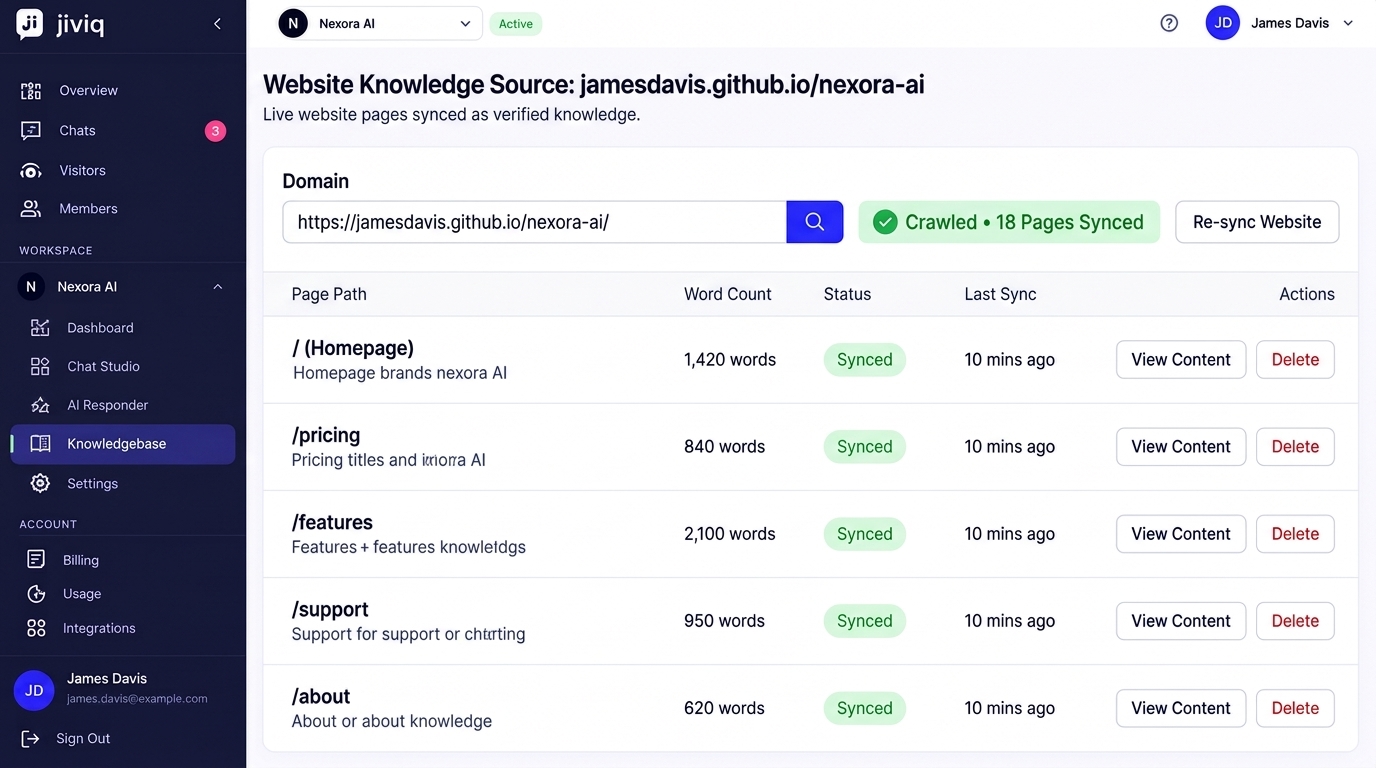
Every website source in your Knowledge Base displays a clear Last refreshed timestamp (e.g., "Last refreshed: 5 mins ago"). This gives your team full auditability over how recent your AI assistant's facts are.
Under the Documents tab inside your Knowledge Source, you can review the entire chronological list of indexed items, see total page counts, and verify the exact date each web document was last refreshed.
6. What Happens If a Page Fails to Import?
A key architectural safeguard in JIVIQ is that one failed page does not stop the rest of your refresh. If your sitemap contains 100 URLs and 1 fails, the remaining 99 pages will still import successfully and become Ready.
According to official JIVIQ documentation, the most common reasons a page displays Couldn't import include:
No Readable Content
The page consists entirely of images, animations, or canvas elements without selectable HTML body text.
Requires Authentication
The page redirected to a password login portal, staging barrier, or internal member dashboard.
Page Is Empty
The webpage returned a blank template (0 bytes of readable textual content).
Duplicate Content
The page's text is 100% identical to another URL already imported in the same source.
Temporary Processing Glitch
Your web hosting server experienced a brief network timeout or returned a 502/504 error.
7. Using "Refresh this page" on an Individual URL
If only one specific page failed or if you made a quick edit to your /refund-policy page, you don't need to refresh your whole sitemap.
8. Real-World Example: The Nexora AI Lifecycle
To connect this to our ongoing project journey, consider how content refreshment works for our testing project site, Nexora AI:
The JIVIQ widget was placed and verified on the testing site: https://manishaysolanke.github.io/nexora-ai/
The website's documentation and pricing pages were imported into the Knowledge Base.
Nexora AI updates a pricing tier or adds a new help article to the live site.
Administrator James Davis opens JIVIQ and clicks Refresh from website.
JIVIQ re-reads the saved sitemap, identifies the altered page, and marks unchanged pages as Already up to date.
Once the status reaches Ready, the JIVIQ AI assistant immediately starts answering customer queries with the updated pricing.
Note: JIVIQ does not continuously poll or monitor the Nexora AI site automatically. The refresh is performed on demand whenever the site owner chooses to synchronize.
9. Frequently Asked Questions
Browse questions across 5 categories to help you keep your Knowledge Base up to date:
JIVIQ does not run background crawlers that continuously poll or overload your web server. When you publish a new price or policy change on your website, you trigger 'Refresh from website' so JIVIQ fetches your updated content on demand.
You only need to refresh whenever you make meaningful changes to your public pages—such as updating a pricing table, modifying operating hours, or launching a new service tier.
Yes. In your imported pages table, you can click the three dots next to any specific URL and select 'Refresh this page'. This re-checks only that single URL without touching the rest of your sitemap.
When you refresh, JIVIQ detects that the deleted URL returns a 404 Not Found error. It flags the page in your table, allowing you to remove it so the AI immediately stops quoting obsolete information.
JIVIQ compares the newly fetched HTML body content with the previously stored semantic hash. If the text has not changed, JIVIQ marks it 'Already up to date' and skips unnecessary re-processing.
No. Each knowledge source keeps website pages and uploaded documents completely separate. Refreshing your website only updates your web URLs and does not affect your uploaded files.
'Already up to date' confirms that JIVIQ checked the live webpage and found that the content is identical to what is already indexed. No changes were needed, and the existing knowledge remains active.
During a refresh, JIVIQ skips re-generating embeddings for pages marked 'Already up to date'. Only the specific pages with modified text are re-parsed and chunked, saving significant time.
If an import job is currently in progress, any new refresh request is safely queued and paused until the active job finishes, preventing conflicting write operations.
No. JIVIQ processes pages independently. If one URL fails due to a temporary server glitch or login requirement, all other healthy pages continue to import and reach 'Ready' without interruption.
The most common causes include: (1) the page has no readable body text, (2) the page requires a password or login, (3) the URL returned a 404 error, (4) the content is an exact duplicate of another page, or (5) a temporary network timeout occurred.
Locate the failed URL in your imported pages table, resolve the issue on your website (e.g. make the page public), click the actions menu next to that URL, and choose 'Refresh this page'.
Refreshed facts take effect immediately the moment the page status transitions to 'Ready'. Active and new customer chats will reference the updated pricing or policies right away.
Not at all. JIVIQ continues answering visitors using your existing indexed knowledge until the new version is verified and marked 'Ready'. There is zero downtime or disruption for your website visitors.
No. For security and knowledge governance, only Workspace Owners and Administrators can initiate a source refresh or modify Knowledge Base settings.