AI Off / Human-Only Mode
Learn how to configure JIVIQ for pure human-to-human communication. Understand how manual live chat works without AI replies or drafts, how customer timeline context remains fully preserved, and how to use conversation-level overrides.
Autopilot Mode
Autonomous AI answering 24/7
Review Autopilot →Copilot Mode
AI drafts with human approval
Review Copilot →AI Off / Human-Only
Pure manual team conversations
Current GuideHow AI Answers
Retrieval, verification & honesty
View Pipeline →Quick Summary: What Is Off Mode?
1. What Happens When AI Is Off?
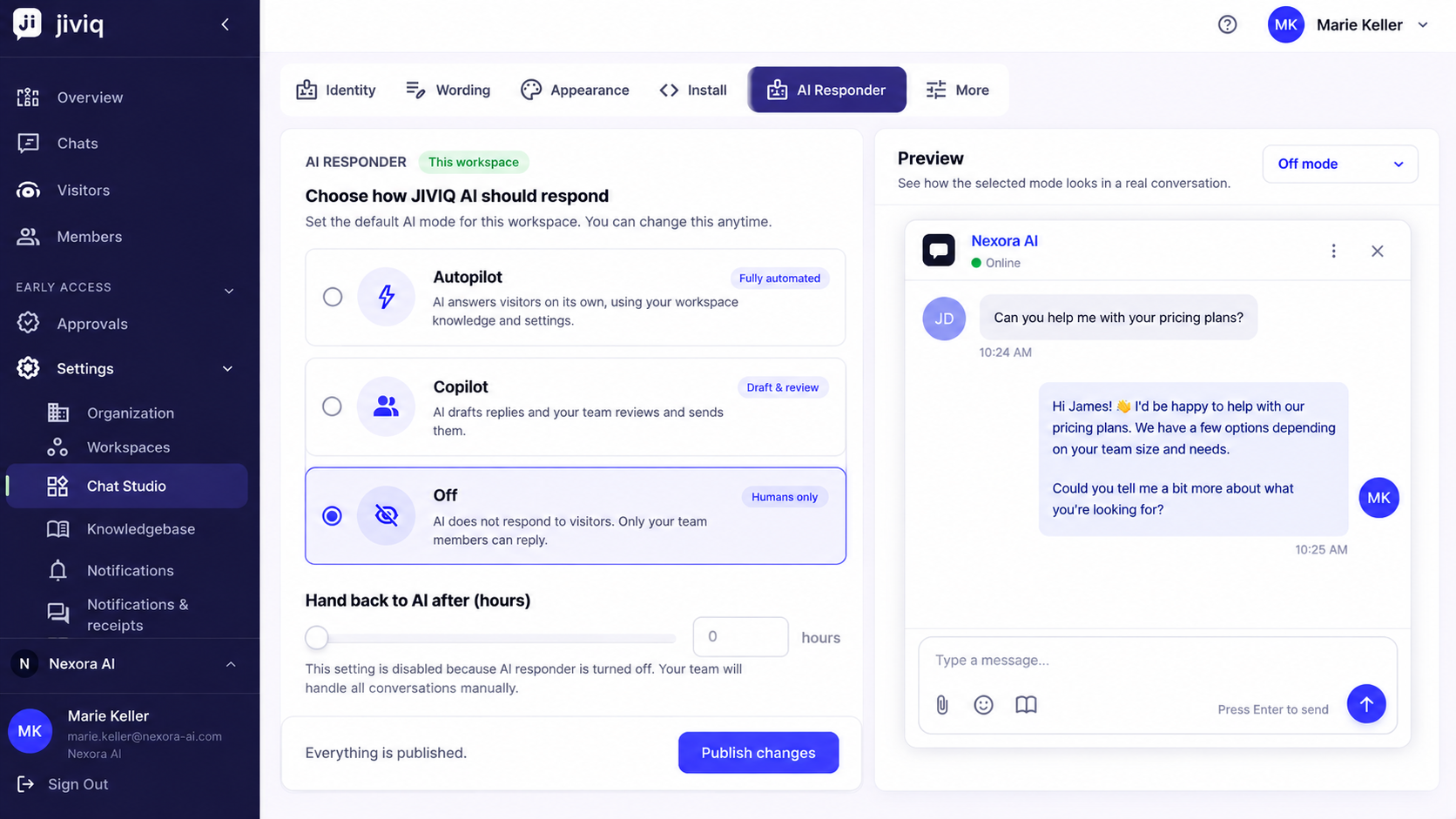
In JIVIQ, Off mode means humans only. The AI does not reply to incoming customer messages, and it does not generate automatic drafts in your inbox composer. Visitors write in, and your team answers directly—delivering straightforward, authentic human live chat.
Zero Automated Interference
When a workspace runs in Off mode, your website visitors never see automated greeting sequences, AI disclosure statements, or artificial typing indicators. Messages show the exact name, avatar, and initials of the active teammate responding.
If your team is offline or outside working hours, the widget reflects your team's real presence: displaying an amber status indicator with the message: "Away right now — leave a message and we'll reply by email". Visitors who provide their email address receive subsequent agent replies directly in their email inbox.
2. Preserved Context & Data
A common misconception is that disabling AI turns off JIVIQ's powerful shared customer memory. This is not the case. Even when the AI responder is Off, JIVIQ continues to operate as your complete Customer Operating System:
Full Omnichannel Timelines
Every chat, email thread, meeting note, and phone call recording remains chronologically connected to the customer's permanent profile.
Visitor Identification & Metadata
Customer email addresses, company names, location metadata, custom tags, and past order values remain instantly visible in your inbox sidebar.
Intact Knowledge Base
Your imported website pages and uploaded PDF documentation remain indexed, ready for instant activation if you choose to re-enable Copilot or Autopilot later.
Team Collaboration Tools
Teammate assignment (Claim), internal private notes, conversation status colors, and presence indicators continue to work with zero interruption.
3. When to Choose Off Mode
While AI assistance speeds up high-volume support, Off mode is the superior operational choice under specific strategic conditions:
| Operational Context | Why Off Mode Is the Best Fit |
|---|---|
| Dedicated High-Touch Concierge Support | Boutique agencies, luxury brands, and executive services where clients expect 100% human white-glove communication on every touchpoint. |
| Highly Regulated or Sensitive Consultations | Legal counseling, medical intake, or private wealth management where automated text generation is prohibited by internal compliance rules. |
| Fully Staffed Shifts | During peak business hours when multiple team members are actively online and prefer writing immediate personal answers without draft suggestions. |
| Early Product Development | Founders in the first 90 days who want to talk to every single website visitor personally to gather unfiltered feedback and iterate on product-market fit. |
4. How to Switch to Off Mode
Workspace owners and admins can switch the AI responder to Off at any time:
Open Workspaces in Settings
In the left sidebar of the admin app at app.jiviq.com, click Settings and select Workspaces.
Click Manage on Your Workspace
Open the workspace you wish to configure by clicking the Manage button on its card.
Select "Off" under AI Responder
Under "Who answers first", select the Off option ("Humans only").
Save Workspace Changes
Click Save Changes. The setting updates across your live widget within approximately 60 seconds.
5. Per-Conversation Overrides
Setting your workspace AI to Off establishes the default baseline for all conversations. However, JIVIQ provides conversation-level controls that allow teammates with write access to override the workspace default on an individual chat.
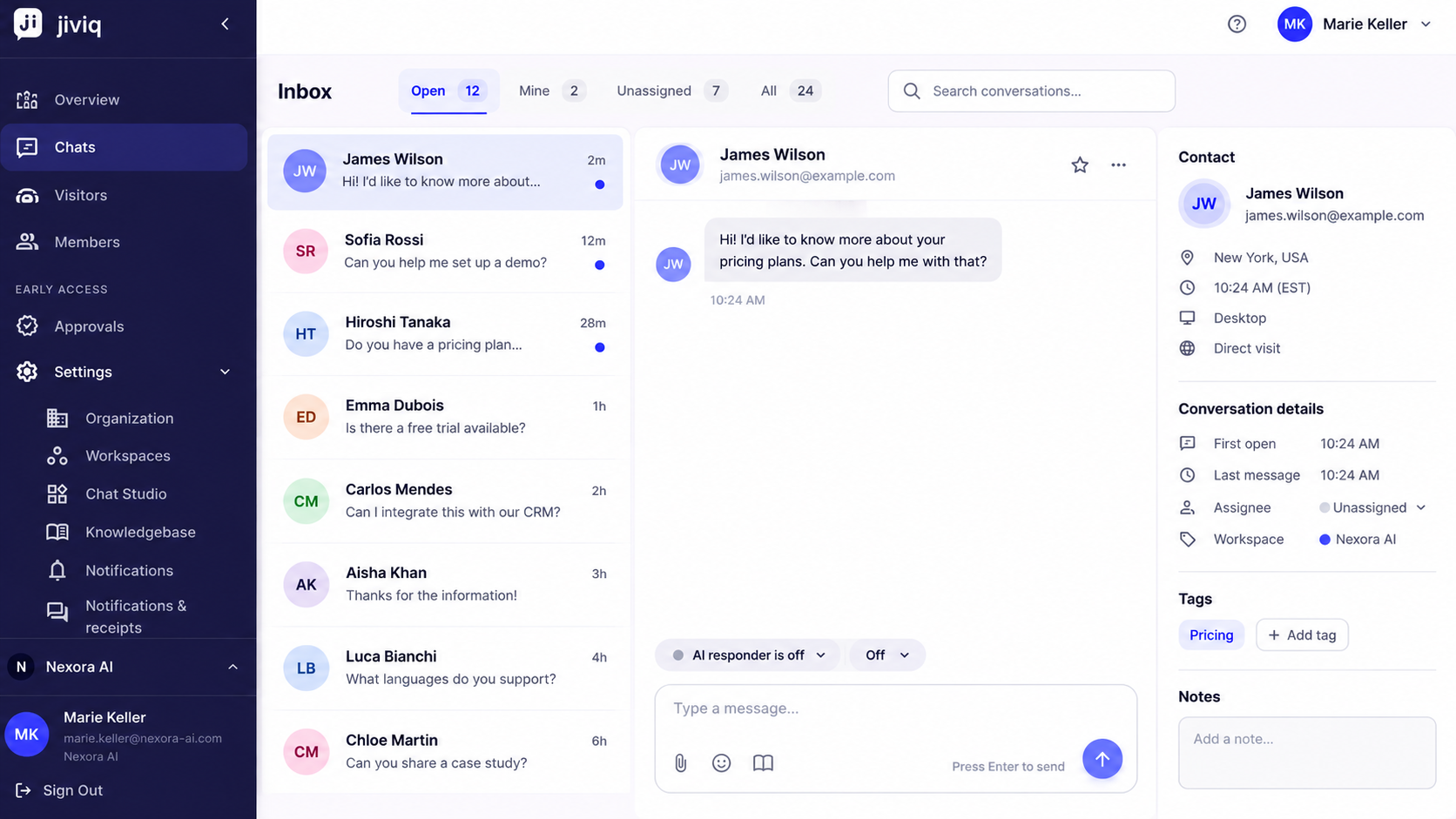
Above the reply box in every conversation sits an AI status pill (which reads "AI · Off" with a note showing the setting stems from the Workspace). Clicking this pill reveals three choices:
- AI answers this conversation: Temporarily hands this specific conversation over to Autopilot to provide autonomous answers.
- AI drafts only — this conversation: Instructs JIVIQ to generate Copilot draft suggestions for this specific conversation without affecting other chats.
- AI off for this conversation: Enforces human-only handling for this specific chat, even if the workspace default is later switched to Autopilot or Copilot.
Conversation Setting Always Wins
In JIVIQ's hierarchy of controls, a conversation's individual setting always wins over the workspace default. The three-dots (⋯) menu in the conversation header also provides quick levers to Return to AI or Disable AI for this conversation.
6. Plan Availability & Longevity
Unlike Autopilot (which requires the Auto-Pilot plan), Off mode is never plan-gated.
You can switch your workspace to Off at any time, on any plan—including the 14-day free trial, active paid tiers, or even after a subscription expires. If you ever pause your subscription, JIVIQ ensures your team can continue chatting with website visitors manually without any paywalls or interruptions.
7. Frequently Asked Questions
Setting AI to Off configures your workspace for 100% human-only live chat. The AI does not send automated replies and does not prepare drafts in the composer. Visitors communicate exclusively with your human team members.
No. When AI is set to Off, the chat widget removes all AI introduction lines and badges. Messages display your human teammates' personal names, avatars, and initials, just like standard team chat software.
The widget header displays live team availability dots: a green dot with 'Typically replies in a few minutes' when agents are active, or an amber dot with 'Away right now — leave a message and we'll reply by email' when your team is offline.
Not at all. JIVIQ's shared customer memory remains fully operational. Every past interaction, visitor email, contact tag, timeline event, and team note is preserved and accessible in your inbox.
No. Your imported website sitemaps, uploaded PDF files, and documentation sources remain securely indexed in JIVIQ. If you switch back to Copilot or Autopilot later, your knowledge is ready immediately.
Yes. All inbox search, filtering, conversation tagging, and omnichannel timeline features continue to function identically with AI set to Off.
Changes apply across your workspace within approximately one minute. There is no need to restart your servers, refresh the website, or re-install the widget snippet.
No. Active visitor chats continue smoothly without reloading. Ongoing conversations simply transition to manual handling for subsequent incoming messages.
Yes. Many businesses run in Off or Copilot mode while office staff is present, and switch to Autopilot in the evening to maintain continuous 24/7 inquiry coverage.
Yes. In the conversation header, an agent can click the AI status pill (reading 'AI · Off') and select 'AI answers this conversation' or 'AI drafts only — this conversation'. The conversation-level override takes precedence.
The AI status pill sits directly above the reply box in every conversation view. Clicking the pill or the three-dots (⋯) menu in the conversation header reveals the override options.
No. Conversation-level overrides apply strictly to that specific customer thread. The rest of your workspace continues operating under your global Off setting.
No. Off mode is completely unrestricted and available across all plans, including free trials, active subscriptions, and even expired accounts.
If an account's trial or paid plan expires, the workspace automatically falls back to Off mode so you can continue answering customer chats manually without disruption.
Only Workspace Owners and Administrators have permissions to change the workspace-level AI responder setting in Settings → Workspaces.