Autopilot Mode
Learn how JIVIQ Autopilot mode allows your AI assistant to autonomously answer visitor inquiries 24/7. Discover how direct AI replies work, how Knowledge Base grounding prevents hallucinations, and how human handover keeps your team in control.
Autopilot Mode
Autonomous AI answering 24/7
Current GuideCopilot Mode
AI drafts with human approval
Explore Copilot →AI Off / Human-Only
Pure manual team conversations
Explore Off Mode →How AI Answers
Retrieval, verification & honesty
View Pipeline →Quick Summary: What Is Autopilot?
1. How Autopilot Works
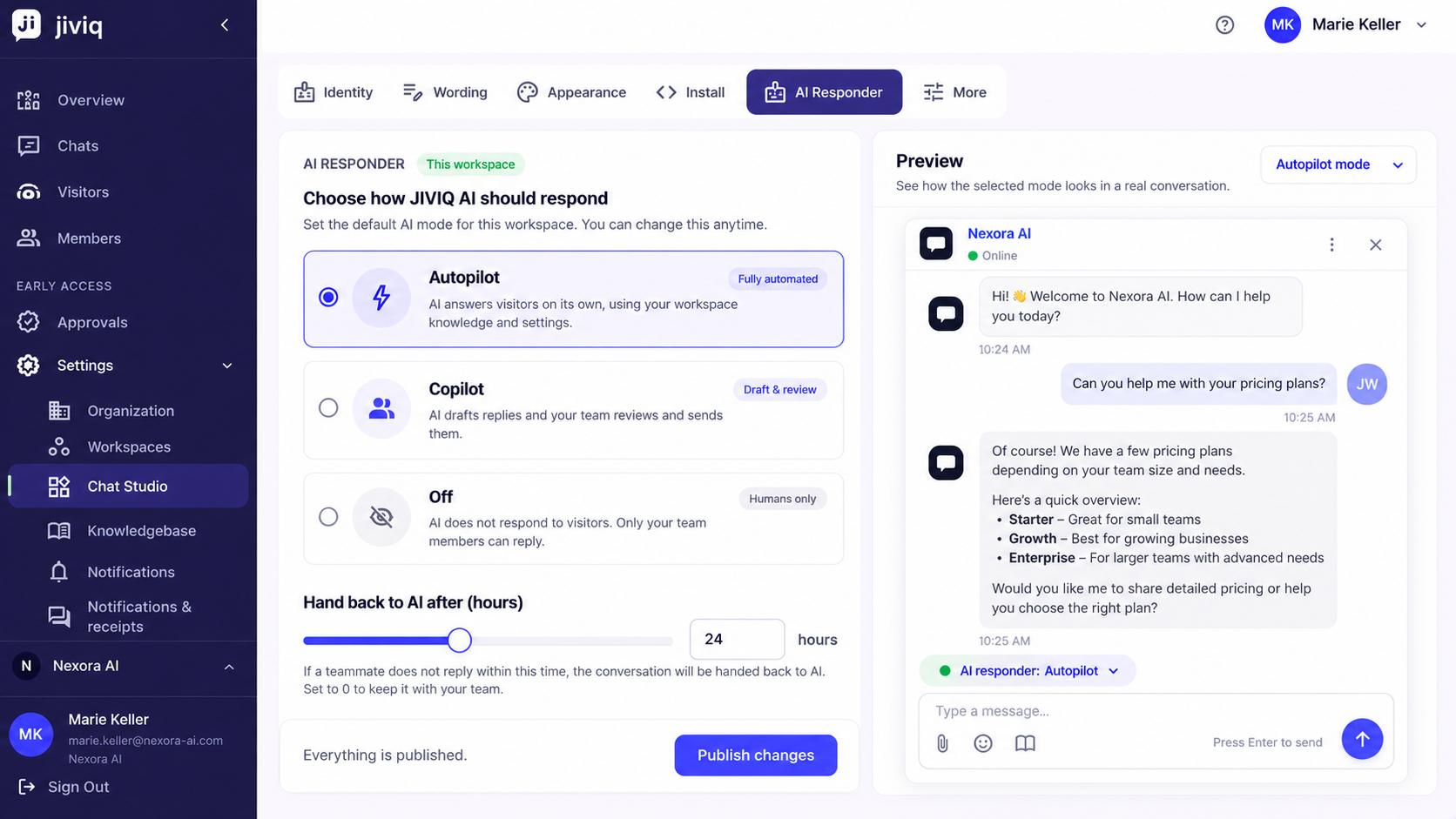
Every JIVIQ Workspace features an AI responder setting that controls who answers customer inquiries first. When set to Autopilot, JIVIQ AI answers website visitors on its own, providing immediate resolution to routine inquiries day or night.
Autopilot vs. Copilot vs. Off
In JIVIQ, the three official AI responder modes are Autopilot (AI answers on its own), Copilot (AI drafts, your team sends), and Off (humans only). New workspaces start in Copilot so your team can review drafts safely. Switching to Autopilot unlocks autonomous, high-speed 24/7 engagement.
Unlike generic AI bots that make promises they cannot keep, Autopilot in JIVIQ is designed with built-in factual safety. It operates as a dependable digital front desk: it answers questions it knows, discloses its AI identity, checks its claims before sending, and calls in your team whenever a customer needs human care.
2. Knowledge Base Grounding & Verification
The foundational rule of JIVIQ is that the AI answers exclusively from your Knowledge Base. It does not browse the public internet, borrow answers from other businesses on JIVIQ, or improvise pricing tiers.
Knowledge Base Search
When a visitor sends a question, JIVIQ retrieves relevant passages from your imported website pages and uploaded documents.
Grounded Draft Generation
The assistant composes an initial answer utilizing only the verified facts located in the retrieved passages.
Pre-Send Verification (Claim Check)
Before delivering the message, an automated evaluation verifies every claim against the source material. Unsupported statements are discarded.
Transparent Delivery or Honest Admission
If grounded, the message is delivered. If ungrounded, the AI declines politely and flags the conversation for your team.
During this brief process, visitors see transparent status indicators directly in the chat widget: "Searching the docs…", "Writing a reply…", and "Checking every claim against the docs…". This honesty builds immediate customer trust.
3. Human Handover & Escalation
A visitor chatting with JIVIQ Autopilot is never trapped with an AI. Handover to your human team occurs smoothly under two distinct scenarios:
- When the visitor asks for a person: The AI's opening line clearly discloses: "I'm {assistant name}, {your business}'s AI assistant. Want a person instead? Just ask." If a visitor replies "can I talk to a real person?" or any equivalent request, the AI transfers the conversation to your team immediately.
- When the Knowledge Base lacks an answer: If a visitor asks a question your documents do not cover, the AI refuses to guess. It states: "I couldn't find that in the knowledge base, so I won't guess. Ask me anything else, or I can pass this to the team."
Immediate Escalation Notifications
Whenever the AI escalates a conversation, all workspace owners, admins, and members receive an immediate email and push notification reading: "A conversation was handed to your team — open it to take over." In the admin inbox, the conversation row displays a prominent hollow amber ring and an Escalated chip.
The 15-Minute Safety Net
In Autopilot workspaces, if a human agent takes over an escalated chat but goes silent for 15 minutes while the visitor is still waiting, JIVIQ automatically re-alerts the team queue ("Nobody followed up — open it to help this visitor"). This ensures no customer conversation is silently dropped.
4. The "Hand Back to AI After (hours)" Setting
When a teammate steps in and sends a manual reply, that conversation immediately belongs to the human. Above the reply box, the status pill changes to "AI · Paused — you're handling". The AI will never interrupt or talk over a teammate.
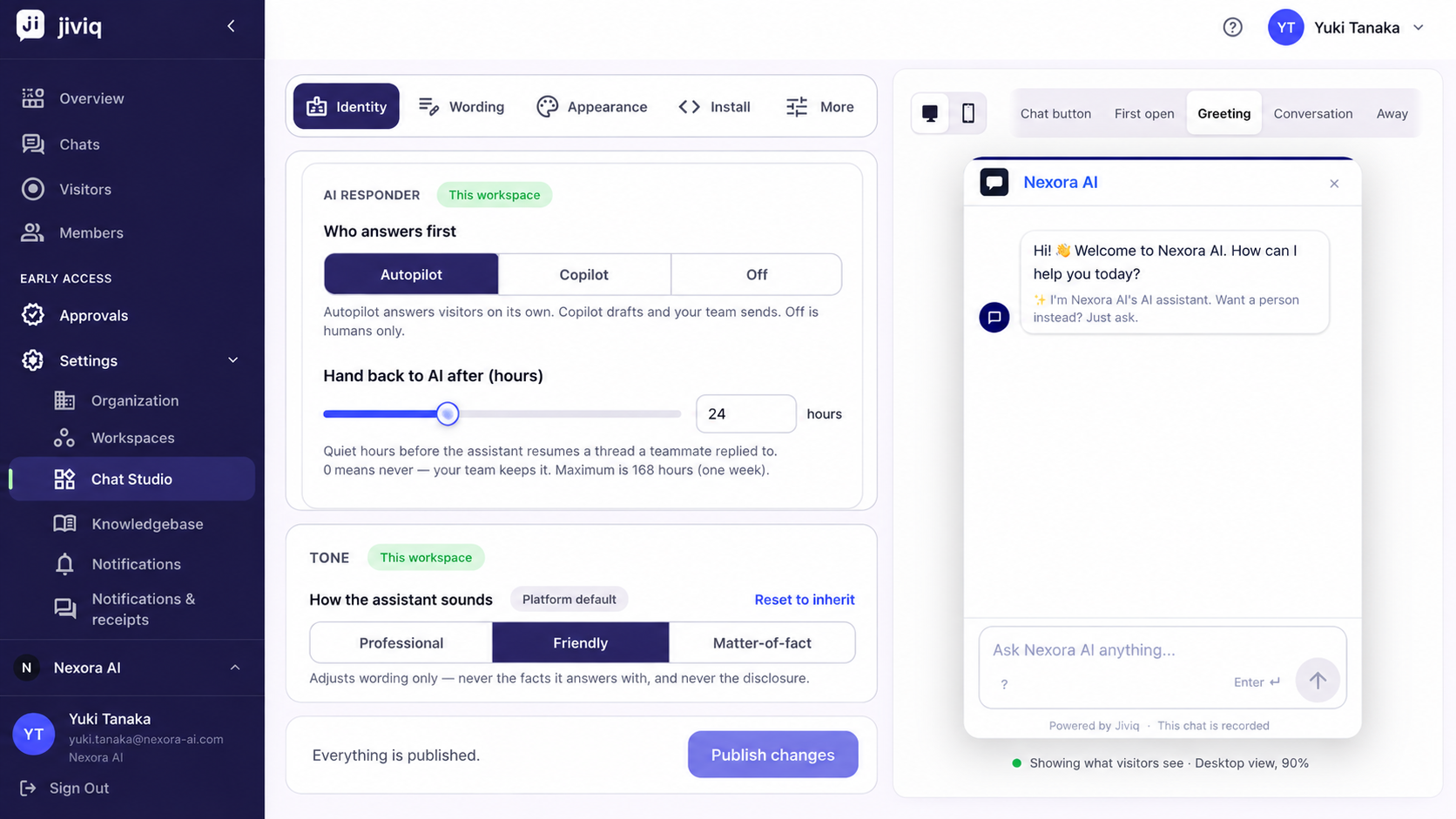
Autopilot provides a companion setting in Workspace settings: "Hand back to AI after (hours)". This setting determines how many quiet hours must elapse without interaction before the assistant is permitted to resume answering on the visitor's next inbound message.
| Value | Behavior | Best For |
|---|---|---|
| 0 hours | Never hand back. Once a teammate replies, the AI stays out permanently unless manually returned. | High-touch accounts, sensitive negotiations, or dedicated relationship managers. |
| 1 – 24 hours | Short quiet window. If the customer returns tomorrow with a new inquiry, the AI answers immediately. | Fast-paced SaaS support, retail e-commerce, and general customer service. |
| 168 hours (Max) | One week. Handback occurs only after seven full days of conversation inactivity. | Extended sales evaluations where agents check in periodically over several days. |
5. When to Choose Autopilot
Autopilot delivers maximum return when your business meets specific operational readiness criteria. Select Autopilot if:
Comprehensive Knowledge Base
You have imported your website pages, FAQs, and service documentation so the AI has ample verified material to answer common inquiries.
24/7 Coverage Demands
Your customers visit across global time zones or outside normal office hours, and you want instant responses rather than making them wait until morning.
High Volume of Repetitive Questions
Your team spends hours daily repeating answers regarding pricing plans, hours of operation, supported integrations, or return policies.
Comfortable with Automated Handover
Your team is prepared to receive push or email notifications when the assistant escalates conversations that require human judgment.
6. Step-by-Step: Enabling Autopilot
Follow these steps to activate Autopilot mode for your JIVIQ workspace. Changes take effect across your website widget within approximately one minute without requiring code re-installation.
Open Workspace Settings
Log in to the JIVIQ admin app at app.jiviq.com. In the left navigation, click Settings and select Workspaces.
Click Manage on Your Workspace
Locate your active workspace card and click the Manage button to open workspace configuration.
Set AI Responder to Autopilot
Find the AI responder section labeled "Who answers first". Select the Autopilot radio option ("AI answers visitors on its own").
Configure Hand Back Hours
In the Hand back to AI after (hours) field, enter your desired quiet duration (e.g., 12 for half a day, or 0 to disable automatic handback).
Save Workspace Changes
Click Save Changes. The setting propagates to your live widget immediately.
7. Practical Testing Recommendations
Before announcing Autopilot to your customer base, verify its live behavior using this four-part testing routine:
1. Incognito Verification
Open an incognito browser window and navigate to your website. Send a message to ensure the widget opens promptly and initiates the conversation in Autopilot mode.
2. Known Fact Verification
Ask a question directly answered on your pricing or FAQ page. Confirm that the AI displays search stages and returns the exact pricing and terminology documented in your Knowledge Base.
3. Knowledge Gap Check
Ask a plausible question that is not in your documents (e.g., about an unannounced feature). Verify that the assistant admits it doesn't know rather than fabricating an answer.
4. Human Handoff Test
Type "I need to talk to a person". Verify that the AI confirms transfer, and check that your team members receive immediate email and push alerts with the hollow amber ring in inbox.
8. Frequently Asked Questions
Autopilot mode allows JIVIQ AI to autonomously answer customer chat inquiries 24/7 without requiring manual human approval. The AI generates replies grounded strictly in your verified Knowledge Base and sends them directly to website visitors in real time.
In Autopilot, the AI delivers approved answers directly to visitors. In Copilot, the AI only generates private drafts inside the team inbox composer, requiring a human teammate to review, edit, or approve each message before it reaches the customer.
Yes. Autopilot typically delivers verified answers within a few seconds. During that time, the chat widget displays real-time progress indicators ('Searching the docs…', 'Writing a reply…', 'Checking every claim against the docs…') so visitors know the assistant is working.
No. JIVIQ operates on strict semantic grounding. The AI answers solely from the content you have imported into your Knowledge Base. If a specific price, policy, or service detail is not documented, Autopilot will not guess or improvise.
Before any Autopilot message is sent to a visitor, JIVIQ runs an automated verification check. This second-pass evaluation compares every factual statement in the draft against the retrieved source text. If any claim cannot be verified, the draft is discarded immediately.
Autopilot admits the gap honestly, telling the visitor: 'I couldn't find that in the knowledge base, so I won't guess. Ask me anything else, or I can pass this to the team.' It then flags the conversation for your team and logs the question in your Assistant Gaps queue.
The AI immediately steps aside and escalates the conversation. Every workspace owner, admin, and member receives an instant email and push notification, and the conversation is marked with a hollow amber ring and an 'Escalated' badge in your inbox.
When a human teammate replies in an Autopilot conversation, the AI pauses and lets the human handle it. The 'Hand back to AI after (hours)' setting defines how many quiet hours must pass before the AI is allowed to resume answering on the visitor's next message. Setting it to 0 means the AI will never reclaim the conversation.
In an Autopilot workspace, if an agent takes over a conversation but remains quiet for 15 minutes while the visitor is still waiting, JIVIQ automatically re-alerts the team queue ('Nobody followed up — open it to help this visitor') to ensure no customer is stranded.
Autopilot requires the Auto-Pilot plan ($49/month). Workspaces on the Co-Pilot plan ($19/month) have access to Copilot and Off modes. During the 14-day free trial, you have full access to Auto-Pilot plan features.
Only Workspace Owners and Administrators can change the workspace-level AI responder setting under Settings → Workspaces or within Chat Studio.
Yes. The AI responder mode is configured independently per workspace. For example, you can run your primary support workspace in Autopilot while keeping your enterprise sales workspace in Copilot.
Open an incognito browser window, navigate to your live website or test domain, open the JIVIQ widget, and ask typical customer questions. Verify that the AI quotes your imported content accurately and test asking 'Can I talk to a person?' to verify human escalation alerts.
Yes. Inside any conversation in your inbox, click the AI status pill above the reply box (which reads 'AI · Answering') and select 'AI off for this conversation' or 'AI drafts only — this conversation'. The conversation-level override takes precedence over the workspace default.
Autopilot continues answering incoming inquiries seamlessly using your existing verified knowledge index. As soon as the refresh job finishes and individual pages transition to 'Ready', the AI immediately references the newly updated facts.