Copilot Mode
Learn how JIVIQ Copilot mode combines AI drafting speed with human review and approval. Understand automatic drafts, the three core draft actions (Send, Edit, Discard), on-demand Suggest Reply, and why new workspaces default to Copilot.
Autopilot Mode
Autonomous AI answering 24/7
Review Autopilot →Copilot Mode
AI drafts with human approval
Current GuideAI Off / Human-Only
Pure manual team conversations
Explore Off Mode →How AI Answers
Retrieval, verification & honesty
View Pipeline →Quick Summary: What Is Copilot?
1. What Is Copilot Mode?
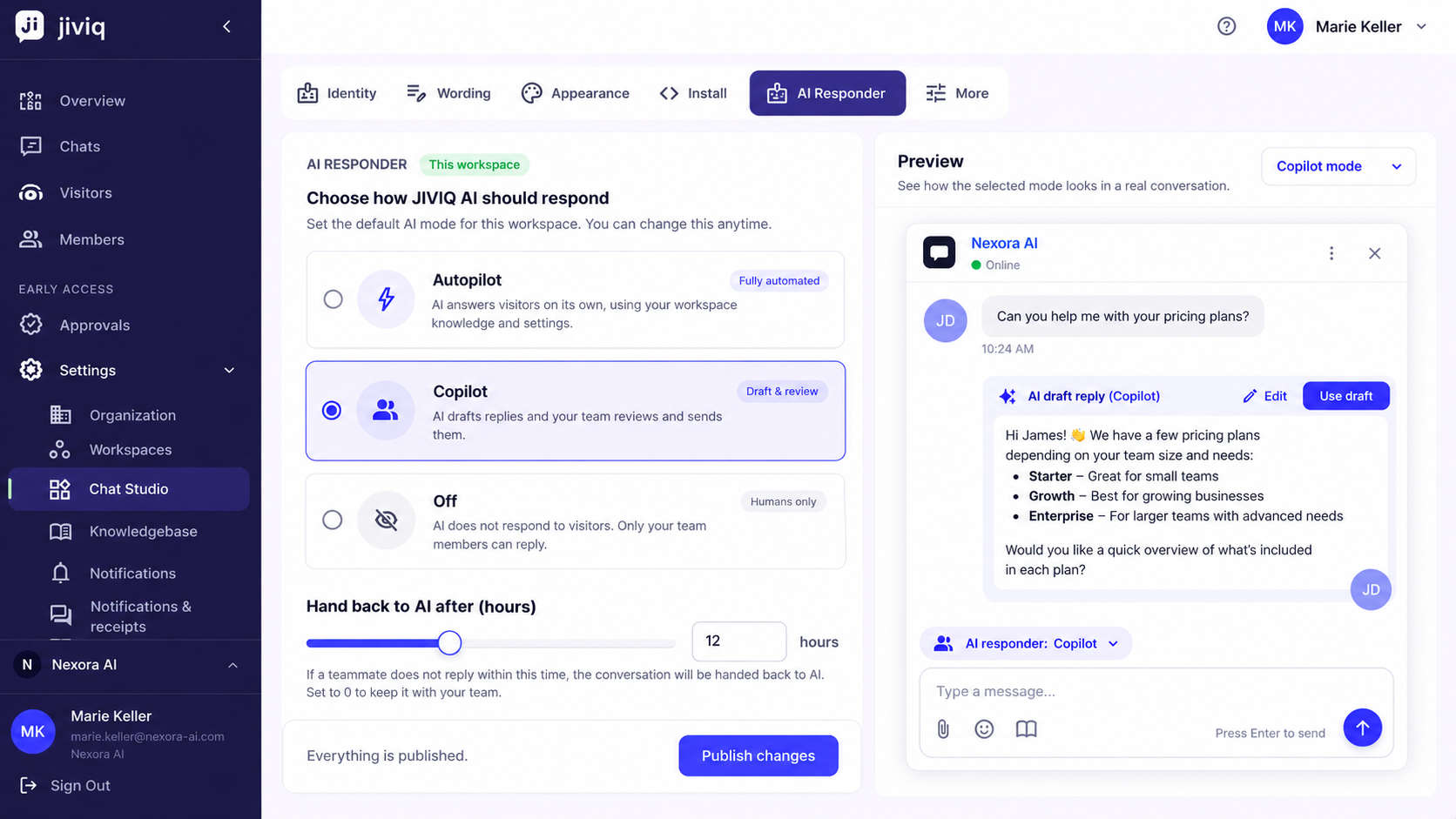
In JIVIQ, Copilot mode means the AI drafts, and your team sends. The AI does all the heavy retrieval work—searching your website pages and uploaded documents to construct a factual reply—but it never messages a visitor on its own.
Total Human Control
In Copilot mode, no text ever leaves your inbox without a human decision. Your teammates retain complete editorial sign-off, ensuring customer communications always reflect your brand voice, tone, and empathy.
From the visitor's perspective, they receive a polished, personal message signed by a real teammate (displaying their name and initials). Visitors are never exposed to AI disclosure tags, draft placeholders, or automated delays.
2. How Automatic Drafts Work
When an inbound message arrives from a website visitor in a Copilot workspace, JIVIQ immediately initiates an automated draft pipeline:
Inbound Message Detection
A customer asks a question through the chat widget on your website.
Knowledge Retrieval
JIVIQ scans your connected Knowledge Base sources (website pages, PDFs, docs) for matching answers.
Draft Preparation
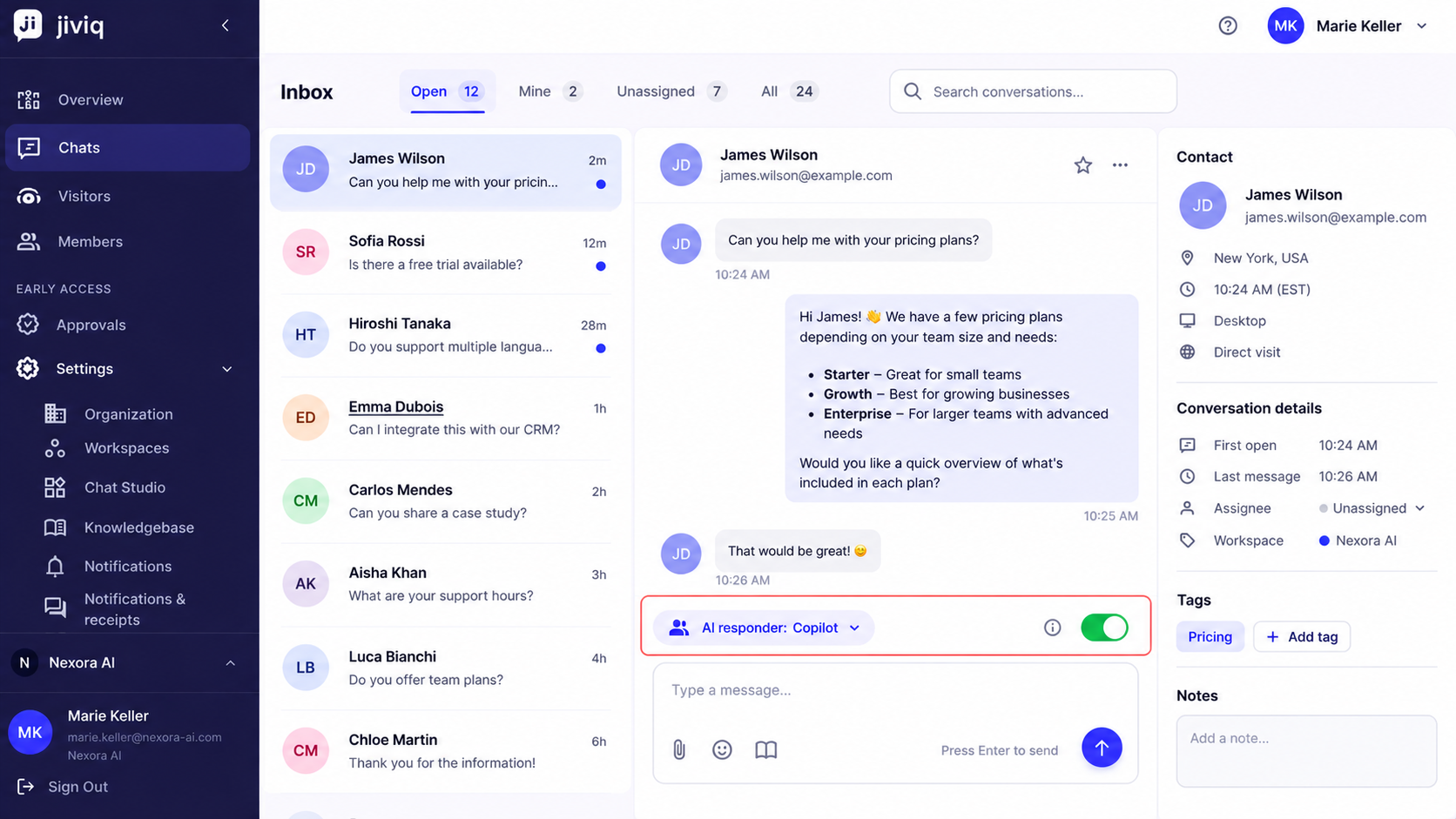
A draft is composed and placed in your admin inbox directly above the message composer, marked "waiting on you".
Teammate Action
Your agent reviews the proposed text in seconds and selects Send, Edit, or Discard.
3. The Three Actions: Send, Edit, Discard
Every automatic draft generated in Copilot mode gives your agents three decisive levers:
| Action | What Happens | When to Use It |
|---|---|---|
| Send | The draft is dispatched to the visitor immediately under your agent's name and avatar. No changes needed. | When the AI draft is 100% accurate, complete, and perfectly matches the customer's request. |
| Edit | The text drops down directly into your composer textarea. You can edit wording, add links, or insert personalized greetings before sending. | When the factual answer is correct, but you want to add customized pricing, account specifics, or personal warmth. |
| Discard | The draft is cleared from the composer without reaching the customer. | When the customer's inquiry requires an entirely different human approach, or when the draft is not relevant. |
Pro Tip: Rapid Keyboard Workflows
Experienced support agents can review and dispatch Copilot drafts in under five seconds. Clicking Send sends the message instantly, while clicking Edit focuses your cursor directly into the textarea for immediate typing.
4. The "Suggest Reply" Button
In addition to automatic drafts generated upon message arrival, JIVIQ provides an on-demand drafting tool: the Suggest reply button.
Located directly adjacent to the composer reply box, Suggest reply allows owners and administrators to query the Knowledge Base at any point during a conversation.
- On-Demand Re-Drafting: If an ongoing discussion shifts to a new topic (such as API rate limits or compliance certifications), clicking Suggest reply triggers an instant search across your docs for the new context.
- Account-Level Activation: If you do not see the Suggest reply button next to your reply box, it may need to be enabled for your account. Contact us at support@jiviq.com and we will activate it for your team.
5. Why Copilot Is the Default Baseline
When you create a brand-new JIVIQ Workspace, it is automatically configured in Copilot mode. We established this default for four critical operational reasons:
Zero Risk of Hallucinations
Because every message requires human sign-off, there is zero possibility of an ungrounded or incomplete answer reaching an external customer.
Knowledge Base Audit Opportunity
Reviewing AI drafts allows your team to see exactly what knowledge JIVIQ retrieves, helping you spot missing articles or outdated documentation before going autonomous.
Preserves Human Warmth
Your team can add personal greetings, empathy, and tailored recommendations while letting the AI do the repetitive typing.
Immediate 4x Productivity Boost
Teammates avoid blank-page fatigue. Reviewing a 3-paragraph technical draft takes 8 seconds; typing it from scratch takes 3 minutes.
6. When to Choose Copilot Over Autopilot
While Autopilot is ideal for 24/7 unassisted coverage, Copilot is the superior choice under specific business conditions:
| Scenario | Why Copilot Is Better |
|---|---|
| High-Value Enterprise Sales | High-ticket deals require strategic nuance, bespoke pricing, and relationship building that automated bots cannot replicate. |
| Regulated Industries | Healthcare, legal, and financial services often have compliance mandates requiring certified human sign-off on all outbound advice. |
| Early-Stage Knowledge Base | If you have only imported a handful of pages, Copilot ensures your agents catch questions your documentation does not yet answer. |
| Bespoke Customer Consultations | Agencies, interior designers, and consultants who customize every quote benefit from AI drafting facts while humans tailor the proposal. |
7. Step-by-Step Daily Workflow
Here is how an agent handles live conversations daily using Copilot mode:
Open the Inbound Chat
Click on an unread conversation in your Chats list at app.jiviq.com/inbox/chats.
Review the Proposed Draft
Inspect the draft card sitting above your reply box marked "waiting on you".
Decide Action
If the draft is flawless, click Send. If you want to modify it, click Edit, make adjustments in the composer, and click Send Reply.
8. Frequently Asked Questions
In Copilot mode, the AI drafts response suggestions from your Knowledge Base, but your human team sends every reply. The AI never sends a message to a visitor on its own, ensuring 100% human oversight on every customer communication.
Copilot is the default baseline for all new workspaces so you can safely evaluate AI draft quality without any risk of unvetted answers reaching your visitors. Nothing goes out until a person reviews and approves it.
No. In Copilot mode, drafts are visible only to your internal team inside the inbox composer. When a teammate approves or edits the draft and clicks Send, the message appears to the visitor with the teammate's name, avatar, and initials, with no AI badge.
As soon as a visitor sends a message, JIVIQ generates a suggested draft and displays it directly above the composer reply box, marked with a blue 'waiting on you' tag and three action choices: Send, Edit, or Discard.
'Send' delivers the draft immediately under your agent's name without modification. 'Edit' copies the draft text into the composer reply box so you can adjust phrasing, add personalized greetings, or insert links before sending. 'Discard' deletes the draft so you can write a reply from scratch.
JIVIQ automatically re-evaluates the entire conversation thread and updates the pending draft to address all recent visitor questions concurrently.
'Suggest reply' is an on-demand button located directly adjacent to the composer reply box. When clicked, it instructs JIVIQ to query your Knowledge Base and generate an instant draft on demand for the active message.
By default, 'Suggest reply' is available to Workspace Owners and Administrators. If you need it enabled for specific agent roles on your account, contact our support team at support@jiviq.com to activate it.
Yes. You can click 'Suggest reply' at any point during an ongoing conversation whenever a customer introduces a new technical question or policy inquiry that you want summarized from your docs.
Instead of searching multiple help articles and typing out multi-step instructions manually, agents review pre-formatted, fact-checked drafts in 5 to 10 seconds, apply quick personal touches, and click Send.
Yes. Any teammate with access to the conversation can view the active draft. To prevent duplicate replies, JIVIQ displays teammate presence indicators showing who is currently viewing the chat.
Copilot is ideal for training new team members. It acts as an on-the-job mentor by surfacing correct technical steps and company policies from your Knowledge Base directly inside the reply composer.
Copilot mode is included in both the Co-Pilot plan ($19/month) and the Auto-Pilot plan ($49/month), as well as during the 14-day free trial.
Once your team has reviewed Copilot drafts over several days and verified that your Knowledge Base delivers accurate answers, go to Settings → Workspaces → Manage, select Autopilot, and click Save Changes.
Yes. In the conversation header, click the AI status pill (reading 'AI · Drafts only') and choose 'AI answers this conversation' (to let the AI reply autonomously) or 'AI off for this conversation' (to disable drafts).